How to add a new Mix-In
When a new Mix-In option is required, follow these steps to add it to the system:
1.Open the PLU File, choose a similar Mix-In PLU to copy from
2.Highlight the existing Mix-In PLU and press New From
3.Enter the Item Name and price
4.Check the Keypad Modifier on this PLU, if this is Reg, you will need to repeat this process for the Lge version of this Mix-In PLU
5.Go to the Bill of Materials tab and check /adjust the Fill to Line setting for this size
6.Press OK to save
7.Now, add the new Mix-In PLU to the PLU Ingredients list of all main item PLUs for which this Mix-In is available. Follow these steps:
•Highlight an existing main item PLU of Reg size and press Change
•Press PLU Ingredients button
•Click the icon on the left of the Ingredients table to select from the PLU file
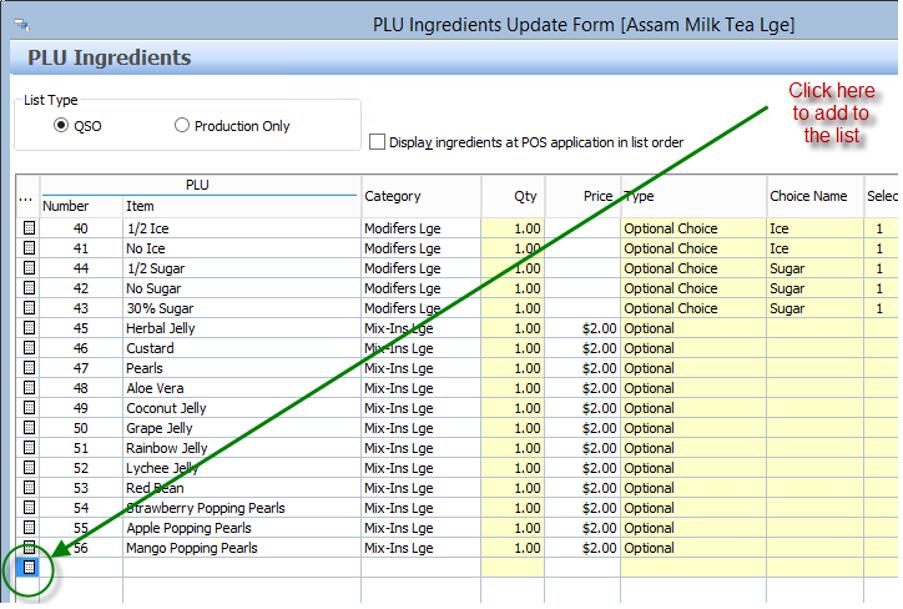
•Highlight the new Mix-In PLU in Reg size and press Select
•Ensure the Type is set to Optional
•Use the Move Up / Move Down buttons to position this Mix-In as required in the list of Optional items
•Press OK to save
•Repeat the above process for a main item PLU of Lge size, adding the new Lge size Mix-In PLU
•TIP: you can Copy and Paste the PLU Ingredients table from one PLU to another
-Open the Reg size PLU, go to PLU Ingredients, press Copy
-Now go to another Reg size PLU, go to PLU Ingredients, press Clear All, then press Paste
-Repeat the above step for all Reg size PLUs
-Open the Lge size PLU, go to PLU Ingredients, press Copy, repeat the Clear All/Paste process for all Lge size PLUs