How to add a new Main Item/Product
When a new menu item is required follow these steps to add it to the system:
1.Open the PLU File, choose a similar PLU to copy from
NOTE: it is recommended that you copy from a PLU of the same size (if relevant) since the BOM Modifier PLUs and the Mix-Ins are size specific
2.Highlight the existing PLU and press New From:
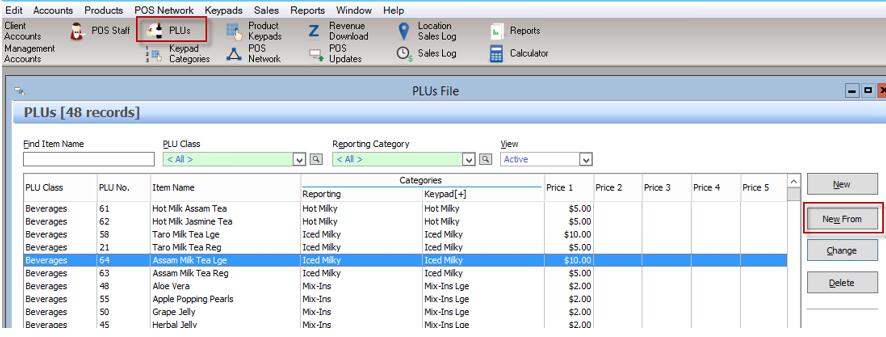
-The PLU settings will be copied but can be adjusted as required, including:
•Keypad Category
•Price
•PLU Ingredients
•PLU Bill of Materials Matrix
3. Check/change all settings as required, press OK to save
4. Repeat process for all sizes required for this product
5. If a keypad button is required for this product:
-Go to Product Keypads, highlight the correct keypad and press Change
-Click an empty button
NOTE: if you need to rearrange your keypad buttons, they can be moved by right clicking on a button to ‘pick it up’ and left clicking on an empty button to ‘drop it’. If you drop onto an existing button, the two buttons will swap position.
-Press the PLU button type, highlight the new PLU and press Select
-Adjust colours as required, press OK to save
6. If a new Keypad Category was created for this product, ensure that the new category is assigned correctly to production printers.