If you are paying more than one of a given supplier’s invoices, it may be quicker to use the Batch Processing method described below. Supplier Batch Payments allow you to save time by paying multiple supplier invoices at the same time.

From Polygon Back Office, Select Accounts from the main menu, then select Supplier Accounts. This will load the Supplier Accounts File, Select the appropriate Supplier from the list and press the Supplier Transactions button, The Supplier Transactions File will be displayed, enter any filtering requirements, then click the Get Records button to view transactions for this supplier, Click the Batch Pay button to load the Batch Payments form.
|

Outstanding Invoices appear in red in the Outstanding Transactions window. To move an invoice to the Transactions to Settle window either:
•Highlight the invoice and click Add,
•Double click on the invoice, or,
•Highlight the invoice and drag it to the lower window.
Note: You may also use the Add All button to move all listed outstanding invoices for supplier to the Transactions to Settle window. Similarly, if you have made an error and wish to start again, you may use the Remove All button to clear the Transactions to Settle window.
•Repeat until all transactions to be settled are moved to the Transactions to Settle window.
•Press the OK button.
•The Invoice Payment Details form will be displayed. This form allows you to select which account the payment will be made from, the payment date and the payment amount.
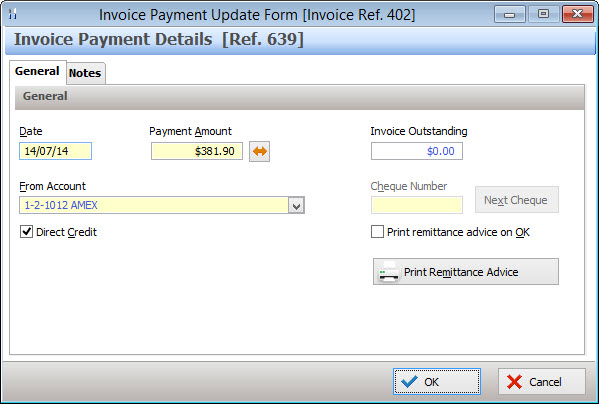
•Select today’s date or enter another date.
•The Total Amount field will be pre-filled.
•If you are paying the balance in full, click on the double arrows to the right of the Payment Amount field and the balance will be automatically entered. Otherwise type the amount of this payment in the Payment Amount text box.
•Select the Account the payment will come from.
•If you are paying by direct credit, tick the Direct Credit tick box, or,
•If you are paying by Cheque:
oEnter the cheque number or click the Next Cheque button to automatically enter a cheque number.
oTick the Print Remittance Advice on OK to print a hard copy of this cheque when the batch payment is saved
See Also:
Getting Started with Polygon Back Office
Polygon Back Office > Suppliers File
Polygon Back Office > Supplier Transactions File