The Supplier Transactions file displays all transactions for a particular supplier. This list can be searched, sorted and filtered by date or by the number of days transactions are overdue. New Supplier Invoices, Supplier Credit Notes and Supplier Deposits can be added and applied from this form.

From Polygon Back Office, Select Accounts from the main menu, then select Supplier Accounts, or, Open the Suppliers File by clicking the Suppliers button on the toolbar, then, Highlight on a supplier entry and click the Change button. This will only display transactions for the selected supplier.
|

Most Recent Records When this form loads, the supplier transaction list will automatically display a page of the most recently added supplier transactions. Older transactions can be viewed by, entering a date in the To and/or From text box (see below). The number of items which are automatically displayed can be increased or decreased by changing the Auto-Load Transaction Threshold setting in the Polygon POS Management application settings. See section Polygon POS Management Application Settings > Polygon POS Management > General - Transactional Browse Forms for more information about this setting.
Filtering by Date Entering a date in the From text box will exclude records from before this date. Entering a date in the To text box will to exclude records after this date. Entering both a From date and a To date will display records which are dated within this period. Leaving the From and To text boxes blank will display a page of the most recently added items (described above). The To and From date boxes also provide pop-up menus for quick access to commonly used date ranges. See section Navigation > Quick Entry of Commonly Used Dates for more information on this topic.
Filtering by Supplier(s) If you loaded the Supplier Transactions File from the Accounts menu, a supplier filter will be shown at the top of the window. Clicking the browse button
Get Records Once you have entered your filtering options, click the Get Records button to apply the filters and display the requested data.
|
 allows you to filter the transactions list by one or more suppliers. To reset the suppliers filter, right click on the suppliers list box and click
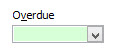
To view overdue transactions click on the down arrow on the Overdue list box and select either 30 Days, 60 Days, 90 Days or 120 Days. This will display only transactions which are overdue by this many days or more. e.g. Selecting 120 Days will only display transactions which are 120 or more days over due. Alternately you can type your own value here e.g Typing 10 will display transactions which are overdue by 10 days or more. Handy Hint: To reset this value and display all transactions regardless of if they are overdue, right click on the Overdue list box and select Clear.
|
The supplier transactions file allows you to create, edit, delete, pay and batch pay transactions. These functions are accessed by clicking on the following buttons: •New - New Invoices or Credit Notes are created by clicking the New button. This loads the Supplier Transaction Details form which allows you to enter the details of your new Invoice or Credit Note; •New From - If a new transaction (Invoice or Credit Note) has similar details to an existing transaction, highlight the existing transaction and click the New From button. This will open the Supplier Transaction Details form and fill it with the details from the existing transaction. This speeds up data entry because you will only need to change the data in the new transaction which is different to the data in the existing transaction; •Change - Highlight a supplier transaction and click Change to edit the existing transaction. This loads the Supplier Transaction Details for this transaction; •Delete - To delete a transaction, highlight the transaction you wish to remove and click the Delete button. This permanently removes the transaction. If you are sure you want to delete the transaction, click Yes when prompted for confirmation; •Settle - To record a payment for a transaction highlight the transaction and click the Settle button. This will load the Invoice Payments File which lists all payments for this transaction. If this is the first payment for the selected transaction, the Invoice Payment Details form will also be displayed; •Batch Settlement - Clicking on the Batch Settlement button will display the Supplier Batch Payments form. The batch payments feature allows you to quickly settle a group of outstanding invoices at once; •Reload List - This button is useful if you have a multi-user license where more than one user can access Polygon Back Office at a time. Click this button to update the list with any changes made by other users such as newly created or recently deleted items; •Print List - This button generates a report showing the currently displayed transaction data. The report can be printed, saved or converted to CSV format which can be opened with spreadsheet programs. For more information about reports see section Reports; •Purchase Orders - Clicking the Purchase orders button will load the Purchase Orders File which allows you to manage Purchase Orders; •Add Deposit - There may be occasions when you are required to pay a deposit to a supplier but have no invoice against which to process the payment. To do this click the Add Deposit button at the bottom of the window. This will display the Invoice Payment Details form where you can enter the details of your deposit. See the Applying Deposits to Invoices section below for instructions explaining how to apply a Deposit to an Invoice.
|
|
To apply a Credit Note to an Invoice: 1.Click the Batch Pay button to load the Supplier Batch Payments File; 2.Highlight the credit note which you wish to apply and then click the Add button; 3.Select the invoice which you wish to apply the credit note to and click the Add button; The selected invoice and credit note will be added to the Transactions to Settle list on the right; 4.Repeat steps 2 and 3 until all the credit notes and invoices which you wish to settle are listed on the right; 5.Click the Settle button to display the Invoice Payment Details form where any additional payments can be recorded; 6.Click the OK button to save changes.
The order of credit notes and invoices in the Transactions to Settle List determines which invoice(s) a credit note will be applied to. When the batch is settled, the amount of each credit note is applied to the invoice immediately above that credit note, any remaining amount is then rolled up to the next invoice above and so on. If there are no more invoices above, the remaining amount from the Credit Note will roll downwards to the next invoice below the Credit Note and then down to the next invoice. The order of the credit notes and invoices can be changed by highlighting an item and then clicking the Move Up and Move Down buttons. In the example below the Credit Note of $104.50 will be applied to the Invoice for $83.60 above. This leaves a remainder of $20.90. As there are no additional invoices above this invoice, the remaining amount will be applied to the invoice for $104.50 below the credit note.
See Also: Polygon Back Office > Supplier Batch Payments File Polygon Back Office > Payment Details
|

|
To apply a Deposit to an Invoice: Note: Deposits need to match (but not exceed) invoices balances on a 1:1 basis. This means that Deposits can only be applied to an Invoices with an equal balance. 1.Click the Batch Pay button to load the Supplier Batch Payments File; 2.Highlight the Deposit which you wish to apply and then click the Add button; 3.Select the invoice which you wish to apply the deposit to and click the Add button; The selected invoice and deposit will be added to the Transactions to Settle list on the right; 4.Repeat steps 2 and 3 until all the deposits and invoices which you wish to settle are listed on the right; 5.Click the Settle button to display the Invoice Payment Details form where any additional payments can be recorded; 6.Click the OK button to save changes.
See Also: Polygon Back Office > Supplier Batch Payments File Polygon Back Office > Payment Details
|

Purchase Orders which have been recorded in the Purchase Orders File can be applied to supplier invoices from the Supplier Transaction Details form. See this section Supplier Transaction Details for more information about Applying Purchase Orders.
|
To find a particular supplier transaction enter the transaction item number or part of the transaction item number into the the Find Invoice text box at the top left of the window. This will highlight the first transaction with this text in its Item Number.
|
When supplier transactions are filtered by date. A Brought Forward entry is added. This shows the totals for all the transactions leading up to the entered From Date. That is, the Total Transaction Amount, Total Paid Amount, Total Outstanding Amount and Balance for all entered data until immediately before the beginning of the search filter. The Brought Forward entry is identified as "Brought Forward" in the Details column. If the data is filtered ascending by date, the Brought Forward entry will be shown at the top of the list.
|
When a filter is applied to the supplier transactions, the filtered data is totaled and displayed at the bottom of the form under the heading Total for Selected Period. The Debits figure shows the total for all debits listed. The Credits shows the total for all credits listed. Movement shows the total credits minus the total debits.
|
See Also:
Polygon Back Office > Suppliers File
Polygon Back Office > Purchase Orders File
Getting Started with Polygon Back Office