Introduction
Polygon POS Management and Polygon Back Office enable you to view and print an extensive range of reports automatically generated by the system. This chapter describes the reports available and how to use them.

The reports chapter is divided into the 5 main report groups shown below. Click a link to view more information about the reports which belong to a group: •Polygon POS Management Reports
|
To view a report, highlight the report you wish to view and click the Select button. This will load the report selection criteria window which allows you to control which data will be included in your report.
Report selection criteria often include date ranges, PLU selection, staff selection and location selection fields. This section describes how to efficiently enter your report constraints.
Once you have entered your selection criteria, click the Print button to view the report.
|

 to the right of the list. This will display a pick-list where you can choose which items will be included on the report.
When a report is run and displayed on your computer screen the report can be printed as a hard copy. •If you would like to print a hard copy of the entire report, select File from the main menu, then select Print. This will display the output selection window (shown below). Click the Print button, then click the OK button. •To print only a selection of pages from this report, select File from the main menu, then select Print Pages. Enter the first and last pages of the report which you wish to print, then click the OK button. This will display the output selection window (shown below). Click the Print button, then click the OK button.
If you are having trouble printing hard copies, make sure that you have selected your printer in the Polygon Back Office or Polygon POS Management printer settings. To Access Printer Settings: •From Polygon POS Management or Polygon Back Office; •Select File from the main menu then select Print Setup; •Select your printer from the Name: drop down list box. Note: If your printer doesn't appear from this list you may need to install printer drivers.
|
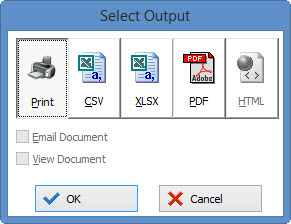
Reports can be saved into a number of electronic formats so they can be stored or eMailed, in a format which can be re-opened at a later time without Polygon POS Management or Polygon Back Office. The three formats that can be saved are: •PDF - PDF files are a printer friendly format which will keep the current report formatting; •CSV - Comma Seperated Value files are widely supported format which can be loaded into a number of spread sheet programs. CSV files do not allow text formatting or formulas to be saved; •XLSX - XLSX is the Microsoft Excel spread sheet format which allows text formatting and formulas to be added to this document from Excel.
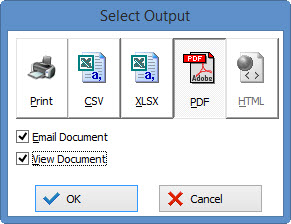
If you would like to save a digital copy of a report: •Run the desired report; •Then select File from the main menu, then select Print. This will display the output selection window (shown below). •Click the file format which you wish to use (CSV, XLSX or PDF). •If you want to use Polygon POS Management or Polygon Back Office to email the saved document, tick the Email Document tick box; •Click the OK button and save the report; •If you chose to email this report, the Send Mail form will be displayed. Enter the To email address(es), Subject and Message text. then click the Send Mail button to send your email. For more information about the Send Mail form, see section Send Mail Form
Note: In order to email reports directly from Polygon POS Management or Polygon Back Office you will need to record email account settings in the Polygon POS Management application settings. (See section Application Settings > General - eMail for more information about recording email account information)
Saving ReportsNote: Some additional setup is required for macOS users so that report files may be successfully saved to your local device. Instructions detailing the setup required can be found here.
Each of the export options will save the file to a directory on your local drive. These directories will be: \\redcat_app\......\Export\CSV The exact location of the local directory will be listed for you at the top of the Save Redcat report export as window. 
When choosing a report output option, you can: •Sort each list column by clicking on the column heading •Locate a previously exported report using the Find field •Choose to name the report file using the Safe File As field. •Save the report using the OK button.
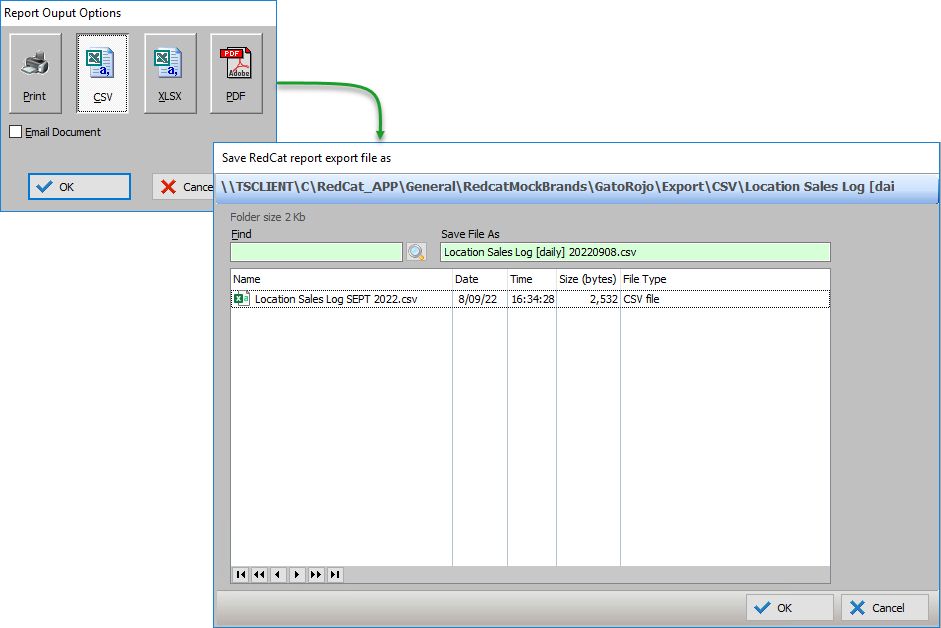 The system will flush the report output (copy it to your local directory) and then copy the location of the file to the clipboard for ease of access. This means that you can open Windows File Explorer or the Windows Search function and paste to open the report. 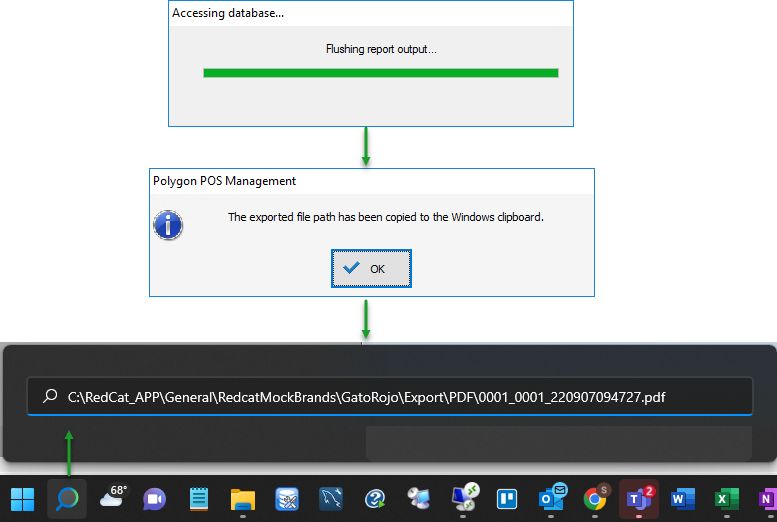
|
Some reports will contain more than one page of data. The current page number and the number of pages included in a report is shown in the status bar at the bottom of the screen, towards the right corner. To change which page is displayed type a page number into the page text box on the toolbar at the top of the window, or click the up/down arrows which are just to the right of the page number. When the page text box is selected, your mouse's scroll button will also move forward and backwards through the report pages.
|

The page zooming feature allows you to increase or decrease the size of the report text on your screen. To change the page zooming: •Click on the Zoom button •Select No Zoom to view the an entire page on the screen, or select Page Width to view larger text which fills the full screen.
|
 or click on
Some reports provide an optional Graph feature. Tick the Show Graphs tick box in a report's selection criteria to include a graph with the report.
|
To exit without printing - Click on the Close button 
See Also:
Reports > Polygon POS Management