The send mail form allows you to quickly email reports which have been generated with Polygon POS Management or Polygon Back Office without using a separate eMail program. In order to use this feature, you will need to record email account settings in the Polygon POS Management application settings. See section Application Settings > General - eMail for more information about recording email account settings;

•When viewing a report; •Select File from the main menu, then select Print; •Choose a document file format (CSV, XLSX or PDF); •Place a tick in the Email Document tick box and click the OK button; •Save the report to the desired location. The Send Mail form will now be displayed.
|
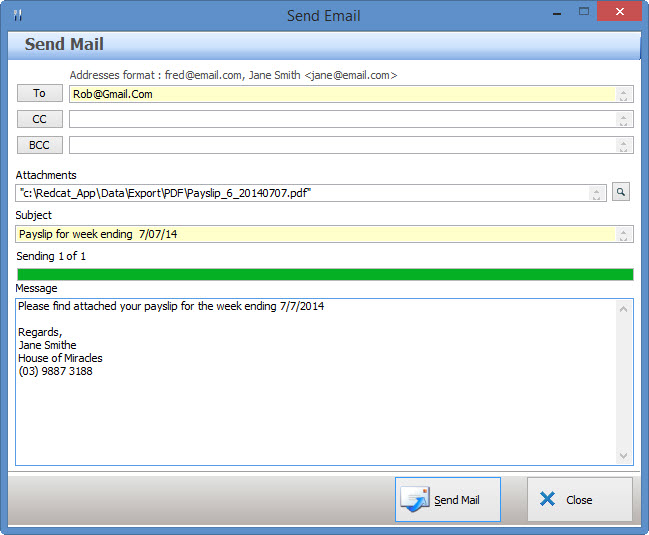
The following information can be entered into the Send Mail Form:
•To: - Enter the email address(es) of the people whom you wish to send this email to. Separate each email address with a comma character ","
•CC - Enter the email addresses of anyone who you wish to send a Carbon Copy of this email. Separate each email address with a comma character ","
•BCC - Enter the email addresses of anyone who you wish to send a Blind Carbon Copy. Email addresses entered here will not be visible to other recipients of this email. Separate each email address with a comma character ","
•Attachments (Read Only) - This filed shows any attached files which will be included with this email. This item is automatically filled and can not be changed;
•Subject - Enter the email subject here;
•Message - Enter any email text here.
When this information has been entered click the Send Mail button to send the email message. Note: This email will NOT be recorded in Sent Mail folder of your email program.
Note: The Sender email address setting is specific to each BOH user account and should be configured as required across all user accounts that will email directly from the system. See Application Settings for more information.
See Also:
Reports > Polygon POS Management