The Supplier Details Form allows you to edit the details of an existing supplier or enter the details of a new supplier.

From Polygon Back Office, Access the Supplier Accounts File by clicking the Suppliers button on the toolbar, Highlight an existing Supplier and click Change to edit the Supplier Details, or, Use the New / New From button to create a new Supplier.
|
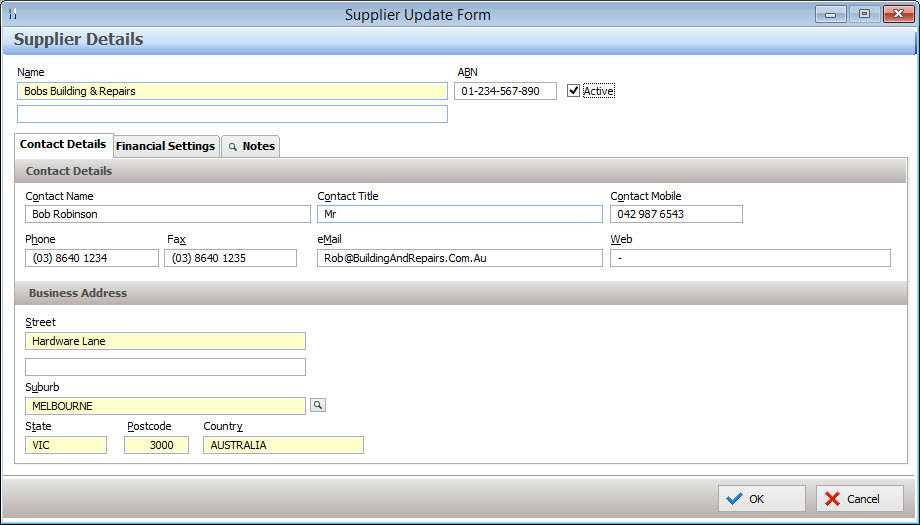
•Name - Enter the Supplier's name •ABN - Enter the supplier's ABN •Active - This can be used to set whether the supplier is Active or Inactive. •Contact Details - Enter the contact details of the supplier. (Contact Name, Contact Title, Contact Mobile Phone, Telephone Number, Fax Number, eMail and Website) •Business Address - Enter the Business address. If their mailing address is the same as their business address the As Business Address button can be used to duplicate the business address. . •Mailing Address - If the mailing address is different to the business address, enter it here. Otherwise click the as Business Address button to duplicate the address. |
Default Financial Settings Polygon Back Office allows you to select a default ledger account for each supplier. This is the account which will normally be debited when purchases are made. If you are using the perpetual stock system, purchases of stock items are debited to the appropriate stock asset account and when the stock is used, the usage is automatically credited to the appropriate stock asset account. If you purchase perpetual stock items from this supplier, place a tick in the Stock Supplier box.
•Assigning A Default Ledger Account - If you are using the perpetual stock system and the supplier is one from whom you normally buy stock items, it is not necessary to enter a Default Default Ledger Account. To assign a Default Ledger Account: oPress the browse button to the right of the Default Ledger Account field and the Accounts Pick List will be displayed. oSelect the appropriate account and click Select. For Multi-Department Users: Ensure that you choose both the correct Department and Account when assigning the Default Ledger Account. Note: You can clear the account by right clicking on the Default Ledger Account and clicking Clear. •Default Bank Account - This is the bank account used to settle invoices from this supplier •Default GST Type - This is the GST type that is most common for transactions with this particular supplier. •Credit Terms - The credit term figure is used to identify invoices that are due or overdue for payment using the Forecasted Supplier Payment report and the Aged Creditors report. A supplier can be assigned one of six credit terms modes. These determine how credit terms will be calculated when recording Invoices or Credit Notes for this supplier. These options are described below: oIn a given number of days - Selecting this option and then entering a value in the Credit Days text box will automatically enter the Credit Days amount as the credit terms on new invoices/credit notes for this supplier. oOn a day of the month - Selecting this option and then selecting a Day of the Month will automatically set the credit terms of new invoices/credit notes for this supplier to the number of days remaining from the invoice date until the next occurrence of the assigned day of the month. E.g If a supplier's Day of the Month value is 14th, and an invoice for this supplier is dated for 7/6/2015, the Invoices Credit Terms will be 7 days. This is because there are 7 days from 7/6/2015 until 14/6/2015. oIn a number of days after the End of the Month - Selecting this option and entering a Number of Days After the End of Month figure will automatically enter the credit terms of new invoices/credit notes for this supplier to the number of days from the invoice/credit note date until the end of the month plus the entered Number of days after the End of Month figure. E.g If a Number of Days After the End of Month figure of 14 has been assigned, an invoice which is dated 7/6/2015 would be assigned credit terms of 37 days. That is calculated as Days until the end of the entered month (23 days) + Days after the End of the Month (14 days) oAt the End of Month - Selecting this option will automatically enter credit terms equal to the number of days remaining in the month from the invoice/credit note date. E.g If an invoice/credit note date of 1/10/2015 is entered, the credit terms will automatically be filled as 30 because there are 30 days remaining in October after 1/10/2015. oOn a day after the End of Month - Selecting this option and then selecting a Day After End of Month value will automatically enter credit terms of new invoices/credit notes for this supplier to the number of days until the end of the entered month plus the number of days until this day occurs in the next month. E.g If the Day after End of the Month is assigned to 2nd and an invoice/credit note is entered for 25/3/2015, the entered credit terms will be 8 days. This is because there are 6 days until the end of the month of March and an additional 2 days are added because the selected Day after End of Month day is the 2nd. Note: If the Day After End of Month value is greater than the number of days in a month, remaining days will be added to credit terms. E.g If a supplier is assigned the 31st day after the End of Month, and an invoice/credit note is dated 31/1/2015, the credit terms will be set to 31 days even though there are only 28 days in February. oNext month's End of Month - Selecting this option will automatically enter credit terms of the number of days from the invoice/credit note date until the second end of month after this date. E.g If a supplier invoice is recorded for 1/7/2015, the credit terms will automatically be entered as 61 Days. This is because there are 30 days after 1st July until the end of July and an additional 31 days until the end of August. Note: The credit terms figure can be changed manually when recording supplier invoices/credit notes on the Supplier Transaction Details form. See Also: Reports > Polygon Back Office for more information about The Forecasted Supplier Payments report and the Aged Creditors report. •Stock Supplier - If you are using the perpetual stock system, purchases of stock items are debited to the appropriate stock asset account and when the stock is used, the usage is automatically credited to the appropriate stock asset account. If you purchase perpetual stock items from this supplier, place a tick in the Stock Supplier box. This will automatically show the Stock Items list when recording new invoices for this supplier. •Stop Invoice Payments - The Stop Payment tick box is used to instruct the system to exclude outstanding invoices for this supplier from a Cheque Run. •Use GST Exclusive Amounts - This setting is automatically selected and should only be un-ticked if you wish to use GST inclusive amounts for this supplier.
Direct Debit Details •Our Client Account Number with this Supplier - If the supplier has provided you with a number for the account you hold with them, enter this information here. This detail will print on the remittance advice when printing a payment cheque for this supplier. •Supplier BPay Reference Number - This is an optional field. If the supplier has provided a BPay Reference Number (a number the supplier uses to identify you if you make payments directly to the supplier bank account), enter it here. •Supplier Bank Account and BSB - If you pay to this supplier directly into their bank account, enter the Direct Payment Account details. This will be used when creating direct entry files for your bank.
|
The Notes tab is a free form field which allows you to enter additional information relevant to this supplier. Note: To easily see if notes have been entered for the supplier. Look for a magnifying glass icon shown on the notes tab.
|
 If the magnifying glass icon isn't shown there are no notes for this supplier.
Once all the required information has been entered, press the OK button to save the supplier.
See Also:
Polygon Back Office > Suppliers File
Polygon Back Office > Supplier Transactions File
Polygon Back Office > Purchase Orders File
Getting Started with Polygon Back Office