This file is designed to save you time when entering descriptions. It stores a list of commonly used descriptions for easy access when a description is needed. The form will initially be blank, you can record commonly used descriptions as you use them.

From Polygon Back Office, This file is accessible from a multiple forms including the Supplier Transaction Details form, the Purchase Order Details form, the Journal Entry Details form, the Bank Transaction Details form, the Quote Details form and the Client Transaction Details form. Click the pick list button
|
 on these forms to access the Pre-Set Descriptions File.
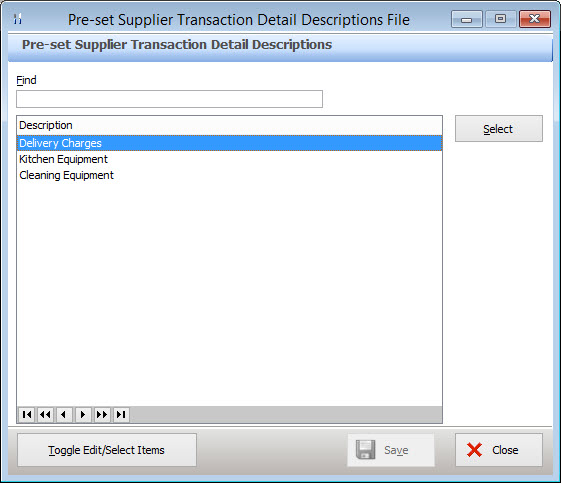
This form has two modes Selection Mode and Editing Mode. Selection Mode - Allows you to select a description from this descriptions file. When the pick list is in selection mode a Select button will be displayed at the top right of the form. Editing Mode allows you to create, edit and remove a descriptions in the Transaction Descriptions File. When the pick list is in editing mode a Delete and Print button will be displayed at the right of the form. To toggle between Selection Mode and Editing Mode click on the Toggle Edit/Select Items button at the bottom of the form.
•Finding Descriptions - To find a description, type all of, or part of the description name into the Find text box at the top of the form.
•Selecting Descriptions - To use an existing description, make sure the description file is in Selection Mode highlight the description and click the Select button;
•Creating Descriptions - To record a new description for later use, make sure the form is in Editing Mode. Enter a transaction description into the blank item at the end of the list and then click Save. Remember to switch back into Selection Mode to use this description;
•Editing Descriptions - To edit an existing description, make sure the form is in Editing Mode, highlight a description and edit the text for that description;
•Deleting Descriptions - To remove a description, make sure the form is in Editing Mode, highlight a description and click the Delete Button.
See Also:
Getting Started with Polygon Back Office