The Promo Player Item Details form allows you to configure how a Promo Player Content Item will be displayed.

From Polygon POS Management, Select Products from the main menu, then select Promo Player Playlist. This will display the Promo Player Playlist File To create a new Promo Player Item click the New button, or, To alter an existing Promo Player Item, highlight the item you wish to alter and click the Change button
|
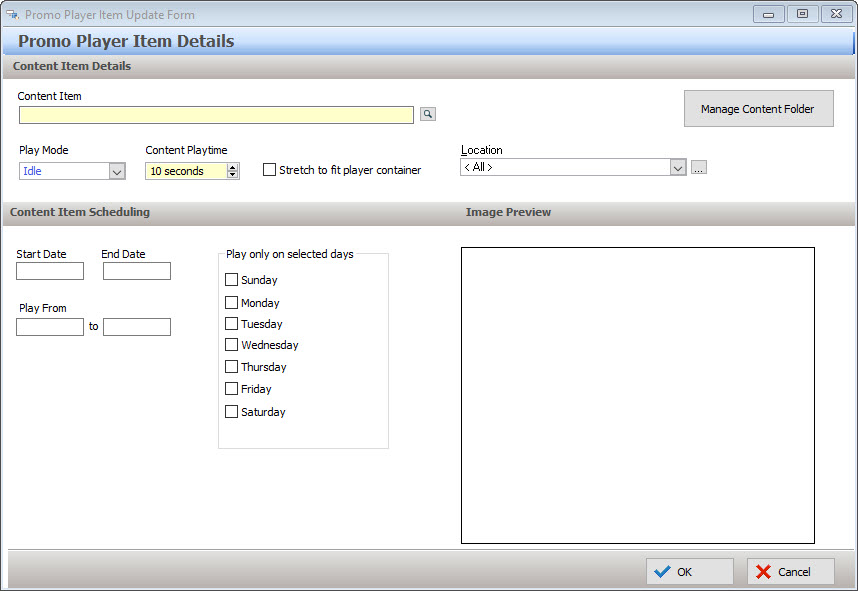
The following options are available from the Promo Player Item Details form:
Note: Some of the details listed on this form are only configurable when the Advanced Promo Player module has been purchased. Columns which only apply to the Advanced Promo Player are shown with a red asterisk *
•Content Item - This text box displays the content item which will be displayed. To change which content item will be displayed, click the browse button  . Note: The filenames for all Promo Player Content must begin with "RCP_"
•Manage Content Folder - Clicking this button will open a file browser window displaying the designated content folder. The content folder can be assigned from the application settings if your access is other than the Redcat Cloud platform. See section Promo Player > Setting the Content Directory for more information about setting the Content Folder. Detailed instructions for assigning images for content when accessing the Redcat Cloud platform can be found here.
•Content Playtime - Determines how many seconds this playlist item will be displayed for before the next item from this play mode will be displayed. For the Basic Promo Player this is always 10 seconds. For the Advanced Promo Player this can be from 1 second to 60 seconds.
•Stretch - Indicates whether this playlist item will be stretched to fit the Promo Player's screen area
•Play Mode - The play mode setting identifies when this playlist item will be displayed at the FOH. This can be:
oIdle - When the POS Terminal is running but not in use
oSale - When a customer order is being recorded
oLoyalty - When a customer ordering being recorded and a loyalty card has been scanned or swiped
oWallpaper - Wallpaper images are shown behind all other content and are only visible when the other content doesn't fill the entire display area.
•Location * - This option allows you to limit which locations will have access to this playlist item. To select which location(s) this item will be available to, click the browse button  (Available with Advanced Promo Player Only)
•Start Date * - Identifies the beginning date of the period when this content will be available for display (Available with Advanced Promo Player Only)
•End Date * - Identifies the end date of the period when this content will be available for display (Available with Advanced Promo Player Only)
•Play From/To * - Displays the period of time when a playlist item will be available for display. The playlist item will not be displayed outside of this period.(Available with Advanced Promo Player Only)
•Play on Selected Days * - The Promo Player Item can be configured to be displayed only on certain days of the week (e.g Sunday, Monday, Tuesday etc) by placing a tick next to the day(s) when the item will be shown. If no days are ticked, the content will not be restricted by the day of the week. (Available with Advanced Promo Player Only)
See Also:
Polygon POS Management > Promo Player Playlist File
Getting Started with Polygon POS Management