The Virtual Safe Transaction Details form allows you to record Virtual Safe Receipts and Virtual Safe Payments. Virtual Safe Receipts (Debits) are used to record funds being added to a virtual safe account holdings. E.g Receiving payment for an sale which was not recorded at the FOH.
Virtual Safe Payments (Credits) are used to record payments which are made directly from the Virtual Safe holdings. e.g Paying for goods or services with cash from the safe.

From Polygon Back Office, Open the Virtual Safe File by clicking the Virtual Safe button on the toolbar, Select the Virtual Safe Account which you wish to manage transactions for, then click the Transactions button, Click the New button to record a new Virtual Safe Receipt or Payment, or, Highlight an existing Virtual Safe transactions and click the Change button to modify the selected transaction.
|
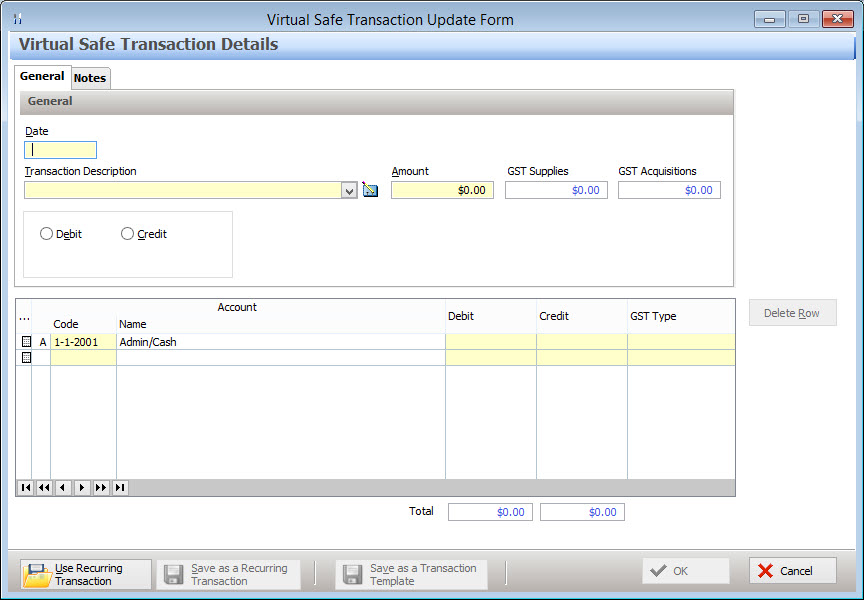
To record a receipt of payment into the virtual safe, enter the following information: •Date - Enter the transaction date here; •Transaction Description - Enter a brief description of this transaction here; •Amount - Record the transaction amount here; •Transaction Type - Select Debit (this indicates the selected virtual safe account balance will be increased); The affected virtual safe and the Debit amount will automatically be entered at the top of the accounts list. This data is read only but the transaction amount can be changed by editing the Amount text box; •Select Accounts - At least one other ledger account must be added for this transaction. To add additional accounts click the line item button •Record Credits - Enter the amount each account will be credited by into the Credit field for each account. •GST Types - GST Types can be recorded for the other account listed in the accounts list by clicking in the GST Type Column. GST Types include: oGST Inc - The GST Received with this transaction will be shown in the GST Supplies field at the top of the form; oGST Free; oExports; oInput Taxed; oNot Applicable; o[BLANK] - This item has no text. Selecting this item will leave the GST Type for this item blank. Note: No GST can be recorded for the virtual safe account at the top of the accounts list because this is account is used as a holding pool.
Before the transaction can be saved, the Total Credits must equal the Total Debits. If the transaction does not balance, an Out of Balance figure will be shown below the Total Fields. The Out of Balance figure shows the difference between the Total Credits and the Total Debits. If this figure is displayed, correct the debits and credits so that their totals are equal. When this is correct, the out of balance figure will be hidden and the OK button will be available. Click OK to save this transaction.
|
 next to the last line in the account list, then select the desired account from the
To record a expenditure from a virtual safe account such as buying an asset, paying an expense or paying a cost, enter the following information: •Date - Enter the transaction date here; •Transaction Description - Enter a brief description of this transaction here; •Amount - Record the transaction amount here; •Transaction Type - Select Credit (this indicates the selected virtual safe account balance will be decreased); •The affected virtual safe and the Credit amount will automatically be entered at the top of the accounts list. This data is read only but the transaction amount can be changed by editing the Amount text box; •Select Accounts - At least one other ledger account must be added for this transaction. To add additional accounts click the line item button •Record Debits - Enter the amount each account will be debited by into the Debit field for each account. •GST Types - GST Types can be recorded for the other account listed in the accounts list by clicking in the GST Type Column. GST Types include: oGST Inc - General - The GST paid on this item will be shown in the GST Acquisitions field at the top of the form; oGST Inc - Capital - The GST paid on this item will be shown in the GST Acquisitions field at the top of the form; oGST Free; oInput Taxed; oNot Applicable; o[BLANK] - This item has no text. Selecting this item will leave the GST Type for this item blank. Note: No GST can be recorded for the virtual safe account at the top of the accounts list because this is account is used as a holding pool.
Before the transaction can be saved, the total credits must equal the total debits. If the transaction does not balance, an Out of Balance figure will be shown below the Total Fields. The Out of Balance figure shows the difference between the Total Credits and the Total Debits. If this figure is displayed, correct the debits and credits so that their totals are equal. When this is correct, the Out of Balance figure will be hidden and the OK button will be available. Click OK to save this transaction.
|
Polygon Back Office allows you to save the details of miscellaneous transactions which you will enter on a regular or recurring basis. Utilising this functionality will save data entry processing time for frequently used transactions. Transaction Frequency can be set to Daily, Weekly, Monthly, Quarterly or Yearly.
Saving Recurring Transactions To save a recurring transaction so that it may be re-used at a later date. Fill in the transaction details as usual. Include the transaction date, transaction description, amount, transaction type (debit/credit), and fill in the list of debits and credits. When the transaction is balanced, the Save as a Recurring Transaction button will become available at the bottom of the form. Clicking this button will load the Recurring Transaction Update form which allows you to set the Transaction Frequency and the last transaction date (the next transaction date is calculated based on this date and the Transaction Frequency). Please note: The transaction will NOT be automatically recorded at the interval chosen. This is simply needed to calculate and display when the transaction was last processed and when it is next due for processing. The Next Due On text box indicates which date will be used next time this transaction is used. Clicking the Advance Due Date to Next Period button will advance the due date by the selected transaction frequency. Enter a description for this recurring transaction in the Transaction Description text box. This description will identify this recurring transaction in Recurring Transactions File so it can be easily found later. Click OK to save this recurring transaction
Using a Recurring Transaction If you have already saved a Recurring Transaction, it can be re-loaded by clicking the Use Recurring Transaction button at the bottom of the Virtual Safe Transaction Details form. When this button is clicked, the Recurring Transactions File will appear. Select the Recurring Transaction which you wish to use and click the Select button. The Virtual Safe Details form will now display the information saved in the recurring transaction. Make any required changes to this transaction and click the OK button to save changes.
Managing Recurring Transactions Saved Recurring Transactions can be managed from the Recurring Transactions File. To access this file, click on the Use Recurring Transaction button at the bottom of the Virtual Safe Transaction Details form. This will load the Recurring Transactions File where you can select, modify or remove recurring transactions.
Changing the Frequency and/or Due Date of a Recurring Transaction Open the Virtual Safe Transaction Details form. Re-load the recurring transaction you wish to modify, by clicking the Use Recurring Transaction button at the bottom of the form. When this button is clicked, the Recurring Transactions File will appear. Highlight the Recurring Transaction which you wish to change, then click the Select button. The Virtual Safe Transaction Details form will now display the information saved in the recurring transaction. Make any required changes to this transaction (the transaction description must stay the same as the original description of the recurring transaction being changed) and click the Save as Recurring Transaction button. A confirmation prompt saying "A recurring transaction with this description already exists. Do you want to overwrite the existing recurring transaction?" Click Yes to confirm the update or click No to cancel the update. Change the Transaction Frequency and Last Transaction Date as required, then click OK to save the changes.
|
Transaction templates can be used when a particular transaction is used repeatedly but not with a specific frequency. To save a transaction template, first save the transaction description in the transaction description pick-list by clicking the pick list button.
|
 See section
The Notes tab is a free form field which allows you to enter additional information about this transaction. Note: To easily see if notes have been entered for the transaction. Look for a magnifying glass icon shown on the notes tab.
|
 If the magnifying glass icon isn't shown there are no notes for this transaction.
See Also:
Polygon Back Office > Virtual Safe File
Polygon Back Office > Virtual Safe Transactions File
Polygon Back Office > Virtual Safe Deposits
Getting Started with Polygon Back Office