This section describes some more sophisticated ways of controlling the system and its data. You may find these methods save you time and effort.

Multiple selection enables you to view or select a number of items at a time.
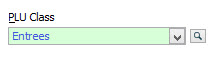
In this example, several PLU Classes are selected whilst in the PLU file. At this point, only the class ‘Entrees’ is selected.
By clicking on the browse button Click on the items which you wish to view and then click the Select button to confirm your selection. If you need to de-select an item, you can do this by holding down the Ctrl button and then clicking on the item.
In this example three classes – Entrees, Mains and Other - have been selected:
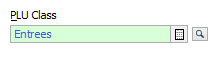
Now, not only is the class ‘Entrees’ displayed, but the ‘Mains’ and ‘Other’ classes are also displayed.
Note, the arrow icon
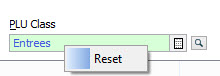
To clear the selected items, right click in the field and click Reset.
|
 the PLU Classes File is displayed. Ticking the '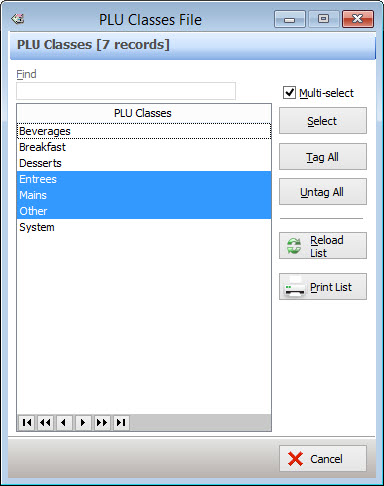
 has changed to a line item icon
Columns can be sorted to display items in ascending or descending alphabetical and numerical order.
|
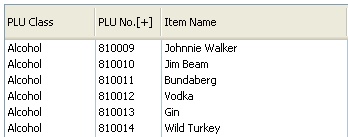
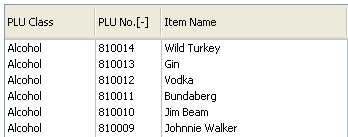

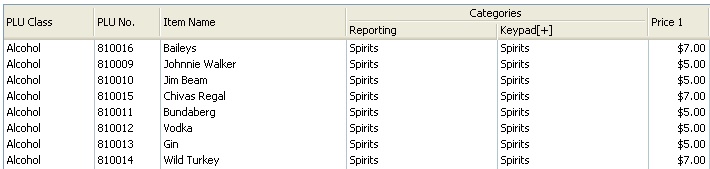
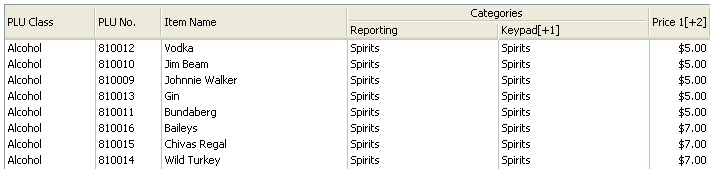
There may be case where you wish to apply to sort function to more than one column at a time and drill down to provide very specific information.
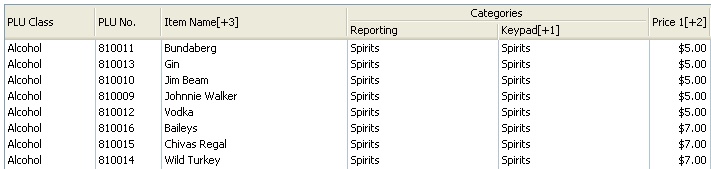
For example: The following data is currently sorted in ascending order by Keypad Category and then a secondary sort is applied based on Price 1
•Firstly, the Keypad Category column is sorted in ascending order by clicking the Keypad column heading.
•Hold down the ‘Ctrl’ button on your keyboard and then click in the next column you wish to sort. In this case, the second column to be sorted is the Price 1 category. It is also sorted in ascending order.
•The ability to drill down further to a third level is available in this example. The Item Name column is also sorted in alphabetical ascending order.
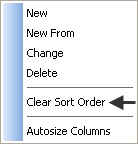
•To clear sorting and revert back to the default sort order, right click on the column headings and then select ‘Clear sort order’ from the pop-up menu.
|
Tree menus can be quickly expanded or collapsed using the pop-up menu which is shown when you click with the right mouse button. This example expands and collapses the POS Network File tree structure.
There are four different levels for viewing the system hardware:
•Selecting Expand to POS Locations will shown only POS Locations in the hardware tree:
•Selecting Expand to POS Areas will display POS Locations and Areas in the hardware tree:
•Selecting Expand to POS Terminals will display POS Locations, Areas and POS Terminals in the hardware tree:
•Selecting Expand to POS Peripherals will display POS Locations, Areas, POS Terminals and POS Peripherals in the hardware tree:
|




See Also:
Polygon POS Management Introduction
Polygon Back Office Introduction