For Polygon POS users only, this form is used to determine which Sale Types and Categories are to be applied to peripherals that have this Printer Set applied.
Sale types and sort orders are applied to each one.

From Polygon POS Management, Select Products from the main menu and select Printer Sets. Use the NEW button.
|

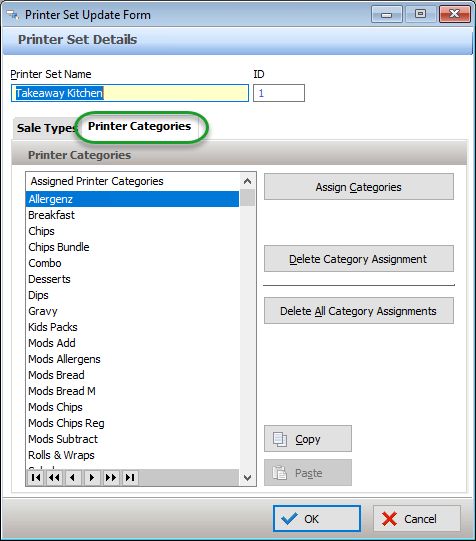
Printer Set Details
•Enter a name in the Printer Set field.
The name must be unique.
Sale Types
You can apply Sale Type filtering by assigning the Sale Types that are applicable to this Printer Set. A Printer Set cannot be saved without at least one Sale Type applied.
•Access the Sale Types tab.
•Use the Assign Sale Types button and select the Sale Types that will be assigned to this Printer Set from the displayed Sale Types File. If there are already Sale Types assigned, the Assign Sale Types button will allow you to choose additional Sale Types.
•If you want to remove a Sale Type from the list, highlight the required Sale Type and use the Delete Sale Type Assignment button.
•To remove the entire list of assigned Sale Types and start over, use the Delete All Sale Type Assignments button.
Printer Categories
You now need to assign the Categories applicable to this Printer Set. The Categories assigned here will override any category assignment that has been applied at a peripheral level. A Printer Set cannot be saved without at least one Category assigned.
•Access the Printer Categories tab.
•Use the Assign Categories button and select the Categories that will be assigned to this Printer Set from the displayed Production Categories File. If there are already Categories assigned, the Assign Categories button will allow you to choose additional Categories.
•If you want to remove a Category from the list, highlight the required Category and use the Delete Category Assignment button.
•To remove the entire list of assigned Categories and start over, use the Delete All Category Assignments button.
•Use the OK button to save the Printer Set Update Form.
Tip for faster programming.
If multiple Printer Sets will use the same list of either Sale Types or Printer Categories, you can copy | paste the list.
To copy the Sale Type list from one Printer Set to another, access the source Sale Type list and use the copy button, then access the target Printer Set Sale Type list and use the paste button.
To copy the Printer Categories list from one Printer Set to another, access the source Printer Categories list and use the copy button, then access the target Printer Set Printer Categories list and use the paste button.
When using the copy | paste function, you will be asked if you want to overwrite or append the source list onto the target list.
See Also: