This section describes how to enable the integration between Polygon and Celigo (and from there to another accounting package such as Netsuite) and how GL accounts should be created and mapped in Polygon Back Office to ensure correct posting of GST figures for BAS reporting. The initial setup and ledger mapping will be provided as part of Redcat’s installation and consultation process. The following information is provided for your review and future reference.
The integration between Redcat Polygon and Celigo allows information contained within the trade reset from the POS to be passed to Celigo when the reset is processed in Polygon POS Management. The information is passed in the form of Journal(s) – for clients with Polygon Inventory this will also include a journal for the Asset | Cost adjustment relevant to stock decrementation.
|
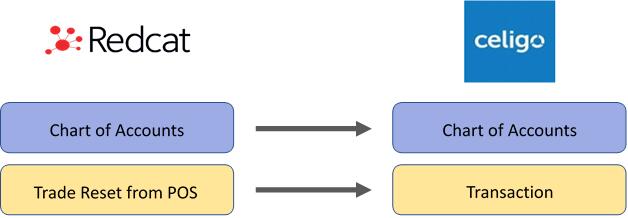

Before the integration can be completed, you will need to: •Provide credentials for either a new or existing NetSuite Admin License (Administrator level). This is required for the Celigo Integrator to install the integration software on your NetSuite instance, configure the authentication layer and test transactions. •Assign a member of your accounting team to be responsible for facilitating the mapping of data, overseeing the testing and providing sign off with the Celigo Integrator. •Provide access to an FTP directory to be used for the interface, including the login credentials. |
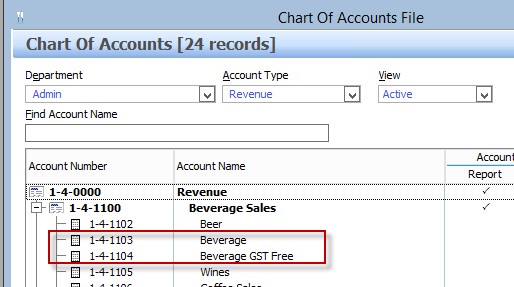
To correctly deal with GST when mapping revenue to feed into Celigo, the setup of Revenue Accounts and PLUs in Polygon POS Management must follow these rules: 1.PLUs that are set up with GST Type: GST Free, must be mapped to a separate Revenue Account to items set up as GST Type: GST Inc 2.To assist with mapping, include ‘GST Inc’ or ‘GST Free’ in at least one of the Revenue Account names in Chart of Accounts File:
EXAMPLE PLUs: Coke (GST Inc) Bottled Water (GST Free)
Running the PLU List by PLU Class report will show both the revenue account assigned and the GST Type of each PLU. Check that any GST Free PLUs are assigned to revenue accounts disparate from your GST Inc items.
|

If there are Paid Out transactions included in your POS resets the integration may also need to pass expenses or costs to Celigo. To correctly deal with GST when mapping expenses/costs to feed into Celigo the setup of Expense Accounts and Paid Out keypad buttons in Polygon POS Management must follow these rules: 1.Clients utilising multiple Paid Out buttons that are set up deal with specific GST Types, must be mapped to a separate Expense Accounts for GST Inc or GST Free. 2.To assist with external account mapping, include ‘GST Inc’ or ‘GST Free’ in the Expense Account names in Chart of Accounts File
Running the Paid Out report will assist you to determine which expense accounts (if any) will need to have a GST Type assigned in the mapping. If you use generic paid outs like Petty Cash (GST Inc) and Petty Cash (GST free) ensure that these are assigned to separate expense accounts in Polygon. Please note: this does NOT mean that the revenue and/or expense accounts must also be separated in Celigo, ie. you can map both the Beverage and Beverage GST Free revenue accounts in Polygon to the same revenue ledger account in Celigo, while Petty Cash GST Inc and Petty Cash GST Free can be mapped to the same expense ledger account in Celigo.
|
For each ledger account listed in the external mapping, the GST type that will be assigned to transactions sent to Celigo from that account must also be assigned. The default GST types accepted by Celigo are: •FRE (GST Free) •GST (GST Inc) •N-T (No GST Implication)
Generally: Asset and Liability accounts have no GST implication (N-T). While Revenue, Expense and Cost accounts are affected by GST (FRE or GST). Please note: If you are running Polygon Inventory a perpetual stock decrementation will be processed as part of the reset. This movement between asset and cost has NO GST implication so BAS Excluded should be chosen for the asset and cost accounts that are assigned to stock items. This table can be used as a guide.
|
Redcat Operations or Support staff will facilitate the setup of the correct modules and test the connection and mapping between Redcat Polygon and Celigo. As part of the installation process, they will also facilitate the following settings and programming. We have included them here for your information and future reference. 1.In POS Management, go to Application Settings, tick ‘Enable the Polygon Central Framework’ 2.Go to Web Reporting > Polygon Central and ensure Polygon Central server address is configured 3.Go to Celigo Interface > General Tick ‘Enable the Celigo interface module’ 4.In the Celigo tax codes field, enter the GST tax codes recognised by Celigo, followed by pipe separators. These will then be available from the External Tax Code drop down list when mapping. 5.Interface API root URL: 6.GL posting URL: 7.Press the select icon next to Polygon/Celigo GL account assignment. |

With the module correctly enabled, posting from Redcat to Celigo will occur automatically when sales resets are processed in the Revenue Download screen or via the auto-download and processing service. If a Redcat account is detected in the GL Reference of a sales reset, which has not been assigned a GST Type as per the section above, the resulting transaction will not balance, and the following error will be displayed:
Failure to post the reset via the Celigo integration will NOT stop the reset from processing in POS Management BOH. Should this occur, you will need to check that every account listed in the Polygon/Celigo GL Account Assignment setting is assigned the correct GST Type and then contact Redcat Support to assist with recovering and reprocessing the reset. |

If for any reason you desire to amend/reprocess a reset in Redcat Polygon, you will need to ensure that the relevant posting in your accounting software is also removed prior to the resend so as to safeguard against overstating of revenue figures. 1.Identify the relevant journal(s) created by this sales reset in your accounting software. 2.Delete the relevant journal(s) from your accounting software. 3.Contact Redcat Support to perform the reset correction in Polygon POS Management (if required) 4.Re-process the corrected reset 5.Verify the correct result in your accounting software. |
If you add or change programming in your Polygon database that will result in new ledger accounts or media types, the following action is required: •Assign correct tax code in the Polygon/Celigo GL Account Assignment as described in the section above Polygon POS Management Setup; and •Advise Redcat Support so that the additional mapping can be completed in Celigo. Files containing the new data will error until this mapping is complete. |