The POLYGON PAYROLL module reached end of life on 30 June 2021 and this was communicated to all clients licensed with this module.
This module is no longer supported.
Historical transactions may be accessed although entry of new payslips is no longer possible.
Single Touch Payroll Phase 2 has not been implemented.
Redcat has partnered with Single Touch Pty Ltd to upload the STP .csv files for all Redcat clients and there will be no charge to you for using the singletouch.com.au portal. The file that you upload will be recognised as originating with Redcat.
Follow these instructions to register with Single Touch Pty Ltd.
Create Log In Details and Verify
Clients first need to register with Single Touch Pty Ltd to be able to use their portal to upload files.
•Go to the Single Touch website at https://singletouch.com.au and choose the Login/Register button.

•Then choose Sign Up Now.
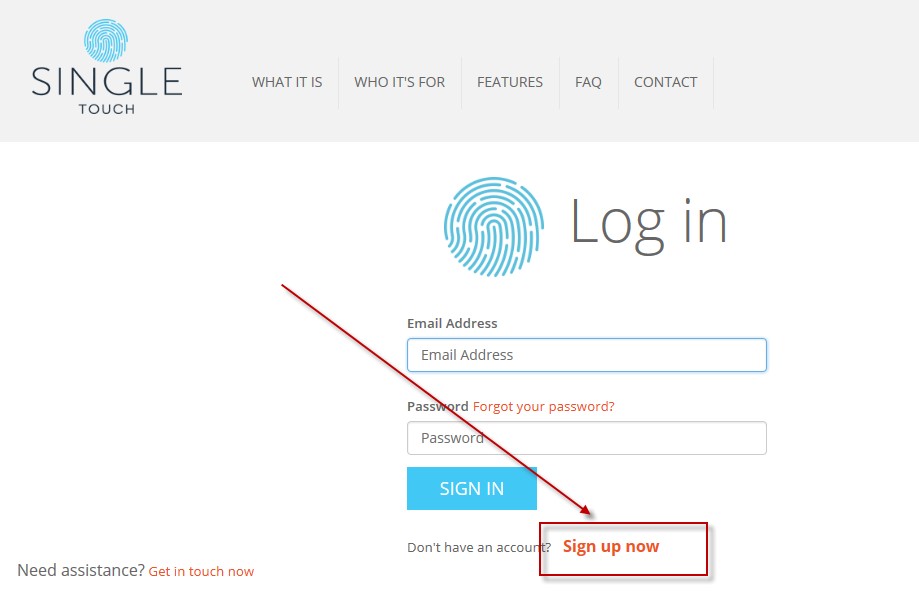
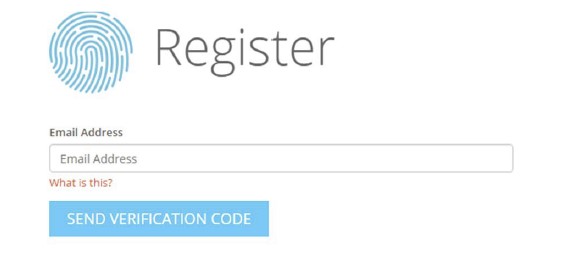
This will open the Register page.
•Enter your email and click on the Send Verification Code button.
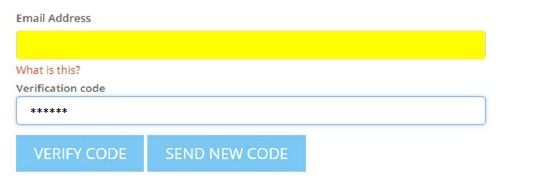
•You will now receive an email which contains a verification code. Please enter the code provided.
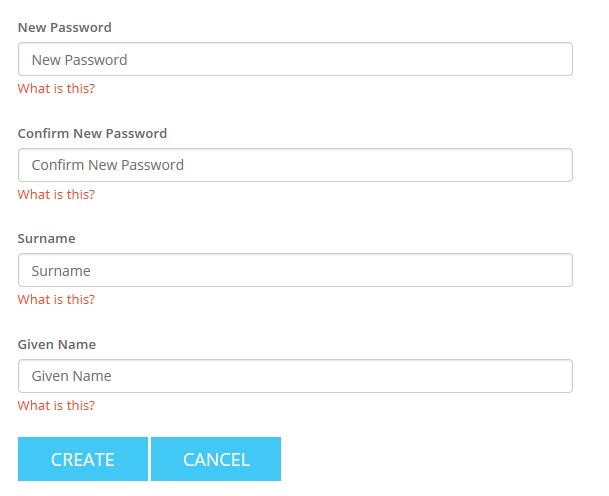
•Type the password that you will use to access the singletouch.com.au site in the New Password box.
Type it again in the Confirm New Password box to confirm your password.
Enter your Surname and Given Name and choose the Create button.
•Choose the Country Code for Australia, and enter your Mobile Phone Number. (Note: This must be a mobile number as it will need to receive a text message containing a verification code).
Chose the Send Code button.
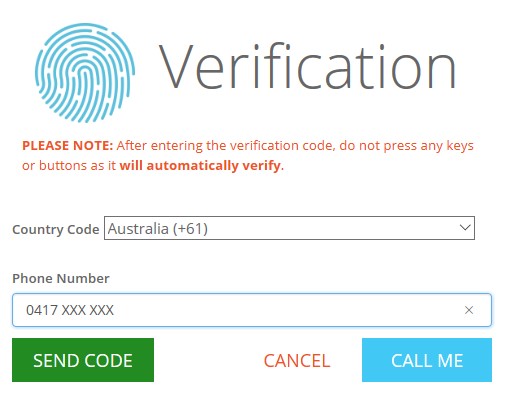
•A verification code will be sent to your mobile.
Enter the code in the Enter Your Verification Code box.
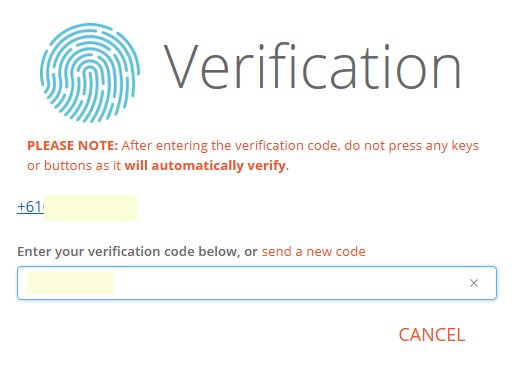
You will now be invited to register an entity.
Enter Entity Details
Now that you have created a User Login account, you need to define the Entity that the STP files you will upload belong to.
•Choose the Register Your Entity button
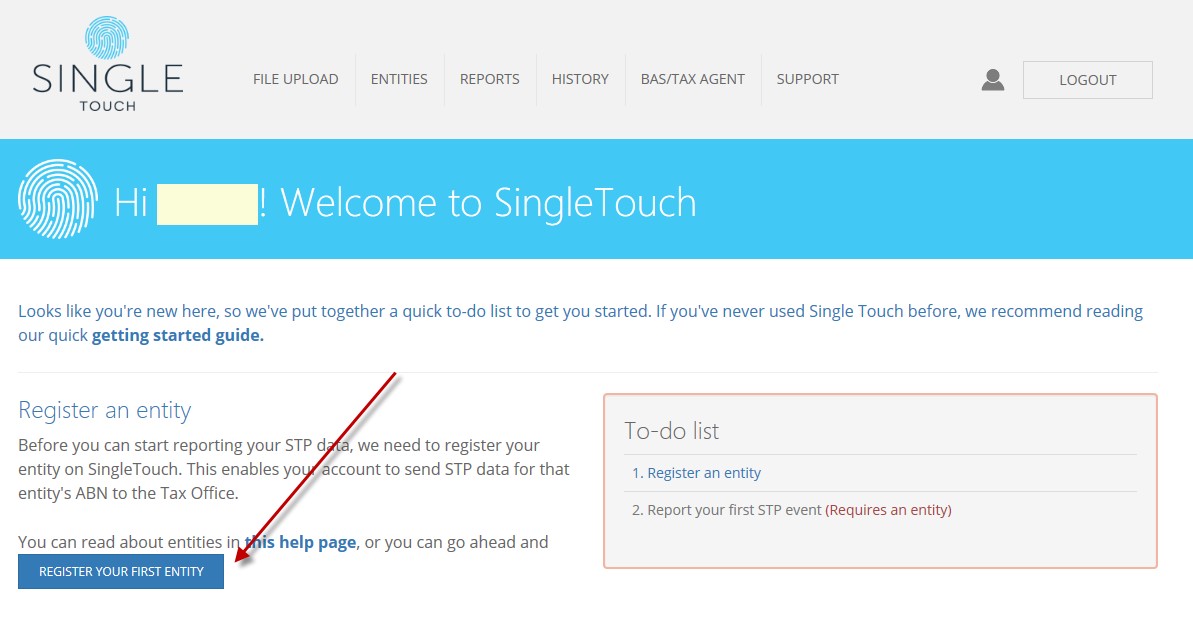
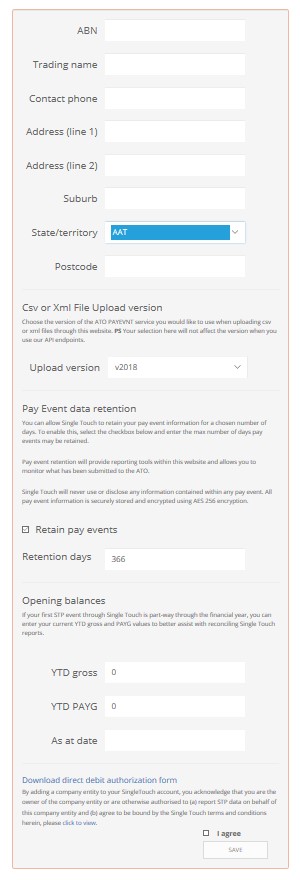
The Register an Entity form will open.
Complete the form to register your entity. Once an entity is registered, you must authorise Single Touch as this entity's STP provider within the myGov portal.
|
Enter the ABN, Trading Name, Contact phone number, and Address details for your organisation.
|
If you do not wish Single Touch to retain information for reporting and reconciliation purposes un‐tick this box. If “retain” indicate how long they are to be retained
|
|
These values are used for reporting and reconciliation purposes only. They ARE NOT reported to the ATO.
|
|
Tick the box to agree with the terms of use, and choose SAVE. |
Assign Additional Users
If there are other people at your organisation who need to be able to upload the STP files, you should now add them as a User.
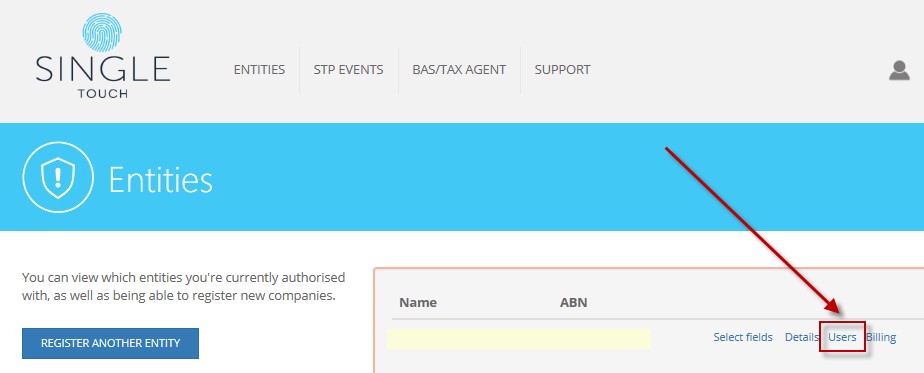
•Choose ENTITIES form the menu and then View Entities.

•Now click on Users to open the User Security section.
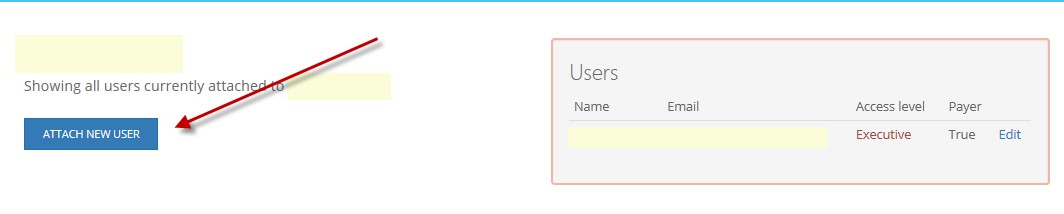
•Use the Attach New User button.
•Enter the email address of the user you want to add and choose ATTACH.
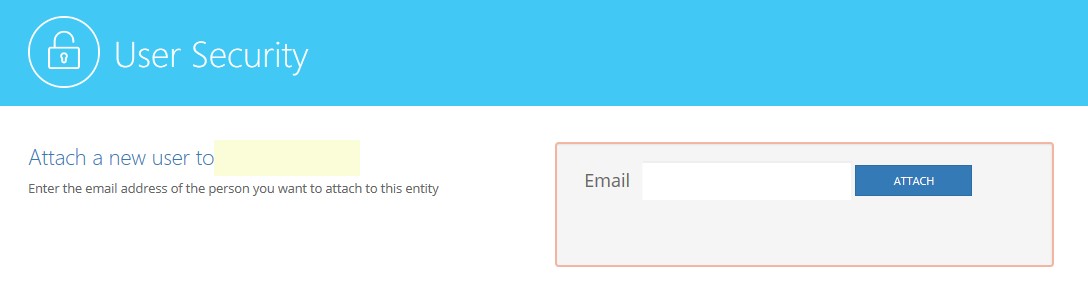
An email will be sent inviting them to create a profile in singletouch.com.au. They will need to register and complete the verification process listed above. Once this is done, they will automatically be attached as a user to your entity.
Next Single Touch Payroll Topic:
Single Touch Payroll > Assign ATO Categories to Allowances
See Also:
Polygon Payroll > Single Touch Payroll > Summary
Polygon Payroll > Getting Started with Single Touch Payroll
Polygon Payroll > Using Single Touch Payroll
Polygon Payroll > Getting Started
Polygon Payroll > Using Polygon Payroll