The Invoice Payment Details File allows you to record a new, or change an existing receipt or batch receipt for a client invoice or deposit. When a client issues payment for a client invoice, the receipt can be recorded from this form.

From Polygon Back Office, Access the Clients File by clicking the Clients button on the toolbar, Select the appropriate Client and click the Client Transactions button, The Client Transactions File will be displayed, Choose any filtering options and then click the Get Records button to view the transactions list, Highlight the Invoice you wish to record a receipt for, then click the Receipt button, If this is the first payment to be entered for this invoice the Invoice Receipt Details form will load immediately, otherwise, the Invoice Receipts File will be displayed.
|
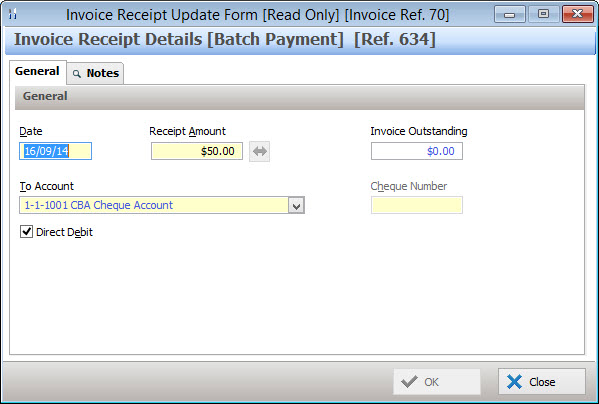
Follow these steps to record a receipt:
•Enter the receipt date. To enter a date using a Date Picker box, right click on the Date text box;
•Enter the amount received in the Receipt Amount field. If balance is being paid in full, click on the double arrows to the right of the Payment Amount field and the balance will be automatically entered.
•Select the Account the payment be paid to, this can be a cheque bank account, or a Virtual Safe Account.
oIf the client is paying by cheque, select Cheques from the accounts list, and enter the cheque number into the Cheque Number text box. The transaction will be held in the virtual safe until the cheque is deposited into a bank account.
oIf the client is paying by cash, select Cash as the account type. The transaction will be held in the virtual safe until the cash is deposited into a bank account.
oIf the payment has been made by direct debit, select the cheque account or merchant card the payment will be made to, and tick the Direct Debit tick box.
The Notes tab is a free form field which allows you to enter additional information relevant to this receipt. Note: To easily see if notes have been entered for this receipt. Look for a magnifying glass icon shown on the notes tab.
|
 If the magnifying glass icon isn't shown there are no notes for this receipt.
Once the receipt details have been entered click OK to save the receipt and return to the Invoice Receipts File where you can record any additional receipts for this invoice.
See Also:
Getting Started with Polygon Back Office
Polygon Back Office > Client File
Polygon Back Office > Client Transactions File
Polygon Back Office > Batch Receipts
Polygon Back Office > Virtual Safe