For Polygon POS users only, this form is used to configure if a KMS Role should be active in this mode, and what Sale Type filtering should be applied for that Role.

From Polygon POS Management, Select Products from the main menu and select Paperless Kitchen Sale Type Modes. Use the NEW button.
|
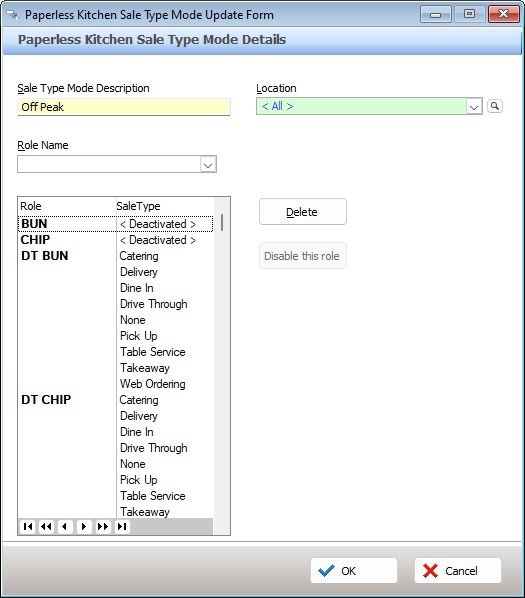
•Enter a name in the Sale Type Mode Description field. This is the name that will be listed at the KMS for selection, so it should be something meaningful to the staff in store.
The name must be unique.
•Select the Locations to which this Sale Type Mode will apply. It will only be available for selection at the locations assigned here.
•For each KMS Role to be included in this mode, choose the Role from the Role Name drop down list. The list will include all roles found in the network tree for Company Owned stores.
- From the Sale Types List presented, select the Sale Types that are to be accepted by this role, when this profile mode is activated on the KMS network.
- If you do not want a KMS Role in service while this profile mode is active, choose the Role from the drop down list, close the Sale Types List without making any selection, then use the Disable this role button. The Role will be listed as <Deactivated>.
•Use the OK button to save the profile mode.
Including a Role programmed in a Franchise Partner database
It is unusual, but possible that a KMS Role exists in a Franchise Partner databases that is not also used for a Company Owned store. If you need to include a Role in a Mode to be mapped to that Franchise Partner store you can add it like this:
•Type the name of the Role into the Role Name field and press TAB.
•Choose the required Sale Types to be accepted by this Role when this profile mode is activated on the KMS network.
•Use the OK button to save the profile mode.
Changing the Sale Type assignment for a Role
If you need to change the Sale Types assigned in this mode profile for a Role you can:
•Re-select the Role from the Role Name drop down list.
•Select all the Sale Types that need to be accepted by this Role. The existing sale type assignment will be replaced with the new selections.
See Also:
POS Network File - POS Peripheral Details - Intelligent Production Display