Intelligent Production Display peripherals are interactive kitchen displays which show customer order information in the kitchen. Intelligent Production Displays are available to users whom have purchased the Paperless Kitchen Management System (KMS) add-on module.
Information presented on Intelligent Production Displays includes the number of items ordered, estimated production time, and the time elapsed since the order was placed. Each Intelligent Production Display is assigned to a role which determines which items will be shown on that display. The items can progress from one KMS role to the another as the orders are prepared. Items can be struck out, put on hold and sent to production printers.
This form allows you to configure KMS Roles which determine which information will be grouped together when it is presented on a Kitchen Display. One KMS Role can be shared by a number of Intelligent Production Displays but each display can be assigned to only one KMS Role at a time. When Intelligent Production Displays share a role, their orders can load balanced. This means the order will be sent to the display which currently has the least load. An Intelligent Production Display's load is determined by the total estimated make time of outstanding items currently assigned to the Intelligent Production Display.

From Polygon POS Management, Access POS Network File by clicking the POS Network button on the toolbar, Highlight the POS Terminal that you wish to add a KMS Role to, then either: •Click the New button, then select Peripheral, then set the Device Type to Intelligent Production Display, or, •Highlight an existing Intelligent Production Display peripheral and click the Change button.
|
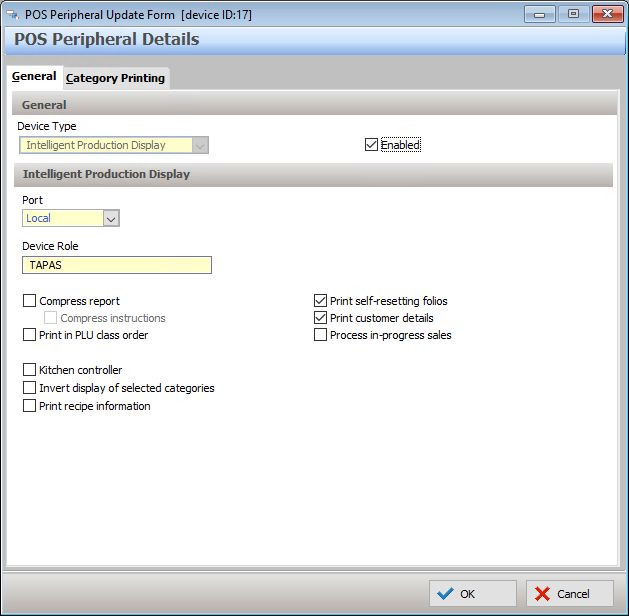
The form is divided into two tabs - General and Category Printing. These tabs are described below:
Device Type This option is only changeable when creating new peripherals. Select Intelligent Production Display here when configuring a new KMS Role.
Enabled This setting will automatically be selected. It should only be un-ticked if a peripheral is temporarily out of use.
Port •Local - Select Local if you are configuring a new Kitchen Display Role. •Network - Select Network if you want to share an existing KMS Role which has already been configured on another POS terminal. This will display all KMS Roles which belong to other POS terminals belonging to this location. Select the KMS Role which you wish to use here. You can change the selected KMS Role by clicking the browse button
Device Role This is the name that will identify this KMS Role at the FOH. It's important to make this name meaningful so staff at the FOH know which KMS Roles to use on which Intelligent Production Display monitors.
Compress report This setting will automatically collate like PLUs on the Intelligent Production Display. This means if a sale contains more than one instance of the same PLU, then the PLU will appear on the docket once showing the quantity of the items ordered e.g Three orders of Roast Lamb would be compressed to appear as “3 x Roast Lamb”. If dockets are displayed uncompressed it would appear as “1 x Roast Lamb, 1 x Roast Lamb, 1 x Roast Lamb” on three separate lines. Similarly, you can then choose whether to compress any instructions associated with the PLUs. The 3 orders of Roast Lamb might be Roast Lamb with Gravy, Roast Lamb with Gravy, Roast Lamb with No Gravy. If the instructions are also compressed the order will appear 3 x Roast Lamb 2 x Gravy 1 x No Gravy
Print in PLU Class order This setting will display items on the Intelligent Production Display in PLU Class order (see section PLU Class Overview ). For example, ‘Entrees’ can be displayed ahead of ‘Mains’. If the function is not turned on, the production display will display items in the order which they were entered on the POS terminal.
Enable Bill of Materials output (if Bill of Materials enabled) This setting will instruct the system to display the Bill of Materials ingredients and measures underneath the PLU on the KMS order window. If Bill of Materials output has been enabled for a KMS Role, the BOM ingredients and measures will: •replace any instructional PLUs entered on the display. •cause the supplementary details from Web or Kiosk orders, such as order and pickup date/time, customer contact details and any notes to be excluded. •exclude POS Sale Type indicators This leaves the focus of the order on the recipe required for production.
Only one IPD in a network can be assigned as the Kitchen Controller. It is also the device that will determine the completion time for an order, and display Ready-to-Bag Notifications if the are enabled.
To implement Paperless Kitchen Queue Prioritisation you may also need to: Enable Paperless Kitchen Queue Prioritisation Assign Priority to Web Menu Ordering Providers Include Keypad Categories in queue prioritisation
Invert Display of Selected Categories Invert the text for items tagged accordingly in the PLU Keypad Categories file.
Print Recipe Information If your system is configured to include Recipe Instructions on productions dockets, you can choose also include the recipe instructions in the KMS order list boxes.
Print Self Resetting Folios If self-resetting folios are utilised in your POS installation, you can choose to include the self resetting folio number with the order when displayed on the IPD device.
Print Customer Details Any customer details provided with an order (collected via membership or web ordering) will be displayed with the items for the order if this setting is on. To save real estate within the order boxes you may wish to exclude them.
Process in-progress sales If you want Real Time Production orders to be accepted by this KMS role, ensure this setting is enabled. You can learn more about Real Time Production Orders here.
|
 and then selecting a different KMS role.
See Also:
Polygon POS Management > Kitchen Management System (KMS) - Paperless Kitchen - General Information
POS Management > POS Peripheral Details
Getting Started with Polygon POS Management