This form is used to enter Keypad Category details when editing or creating a Keypad Category. Keypad Categories are a way of grouping PLUs together so they are easily accessible at the FOH.
For Legacy POS installations, Keypad Categories are also used to determine which production printer PLUs print to, this is called category printing.
For Polygon POS installations, Production Categories are available to separate Keypad Categories from Production requirements. Therefore the settings applicable to production output are removed from Keypad Categories. See this section to learn more about Production Categories.
Note: You are not asked to identify which Class the Category belongs to because Categories do not belong to Classes, PLUs do. In fact you could have a Category which contains some PLUs that belong to the Mains class and some PLUs that belong to the Entrees Class.

From Polygon POS Management, Select the Keypad Categories icon from the toolbar, then, Click the New button to create a new Keypad Category, or, Highlight an existing Keypad Category and click Change to edit this category.
|
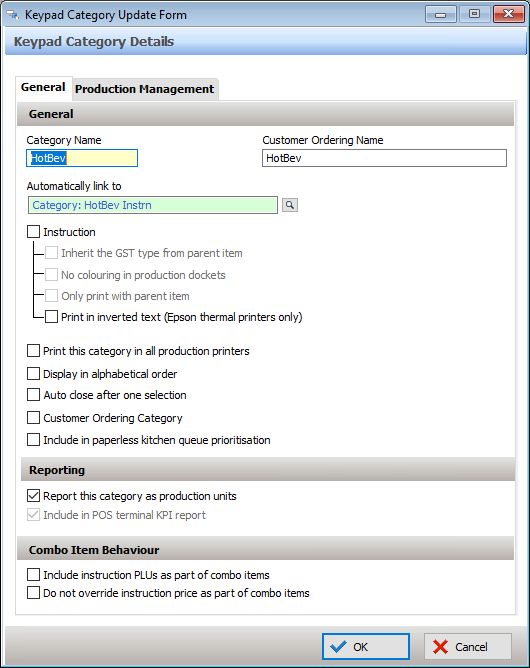
The options available on the screen are described below:
Completing Keypad Category Details: •Name - Type a category name here;
Linking Keypad Categories Each category can be linked to another Category which is a lower level list. In the above screen the Coffee category is linked to a category of Coffee Instructions. When a coffee PLU is selected, the coffee instructions (such as Weak, Skinny, Soy, etc) will display automatically. You can set up a chain of links for as many categories as needed. Keep in mind that if you link a category to another category then the linked pop-up will be displayed for every PLU that is assigned to that first category. See section Understanding Category Linking for further explanation. Note: If the linked category is only applicable to some of the items, rather than the whole category, it is better to make use of the ‘Automatically linked to category’ feature which is specific to individual PLUs. See section PLU Details > Automatically Linked to Category.
Keypad Category Settings •Instruction This setting defines the category as instructional. That is, all PLUs within the category are considered instructions. They will be indented five spaces from the item that precedes them on a production docket or production display, and if you have a dual colour printer, the instruction PLUs will be printed in red. •Inherit the GST Type from parent item This setting means that an instructional item will use the same GST type as the item that preceded it. •No colouring in production dockets This setting is used if you do not wish to have instructions print out in red. •Only print with parent item This setting will override all category printing assignment. PLUs in this category will ONLY and ALWAYS print to whichever production printer(s) the parent PLU is assigned to. See this section for more information about Category Printing. •Print in inverted text (Epson thermal printers only) This option will apply inverted formatting (white text on black background) for items in this category, when sent to an Epson thermal production printer. •Print this category in all production printers This option automatically assigns the category to print on ALL production printers programmed in the POS Network file. This means that there is no need to update the category printing in the POS terminal setup. However, most categories will be specific to an area, such as Kitchen or Coffee Station and should be assigned to the appropriate printer only. For multi-location users: Using this setting within a head office database, enforces the printing of this category on all production printers, including those at Franchise Owned locations. •Display in alphabetical order This instructs the POS system to display the PLUs in this Category in alphabetical order within a category pop-up. Note: This option will only apply to this category. Should you wish to have all categories displayed on the Terminal in alphabetical order you should use the local system settings option. See section: Location System Settings > POS Terminal Settings > Display General for more details. If this option is not enabled, the category will be displayed within the pop-up, in order of entry by PLU number. •Auto close after one selection If this setting is enabled, when a pop-up box is displayed for this category it will automatically close after one selection has been made. If you do not enable this option the category pop-up box will remain open while you select all items you require, until the Close button is pressed. •Customer Ordering Category This option is only available when the Polygon Customer Ordering add-on module has been purchased. Ticking this box makes the category and its PLUs accessible from Polygon Customer Ordering product keypads. •Include in paperless kitchen queue prioritisation This option will determine if the items in this category will qualify for prioritisation within the paperless kitchen queues. Note: Orders which contain no PLUs from categories with a prioritisation will always jump to the front of the queue.
To implement Paperless Kitchen Queue Prioritisation you may also need to: Enable Paperless Kitchen Queue Prioritisation Assign Priority to Web Menu Ordering Providers Assign a KMS Role as the Queue Controller
•Report this category as production units This enables the category to be available in selected reports as a production unit. This means that rather than report the dollar value associated with the PLUs in the category, the system can report on the number of PLUs sold, and will only compile from categories with this tag selected. These reports include Sales by Hour (weekly – same day comparison) and Sales by Half Hour (weekly – same day comparison). See Also: Front of House > Reports •Include in POS Terminal KPI report If you have asked your system to print the KPI addendum on your Z-Read report, this will include this category in the KPI addendum. See Also: Polygon POS Management > POS Terminal Settings > Printing Z-Report •Include instruction PLUs as part of combo items See section PLU Item Details > Pricing and Loyalty Details for details on how a combo is created. If the items within the category you are creating have a sale price attached to them, you may need to specify that they are part of the ‘Combo Items Quantity’ that will be included in the price. That is, they are one of the available options in the combo. •Do not override instruction price as part of combo items If you are making use of combo PLUs this option instructs the system that instructional extras in this category that have a price attached to them should still be charged for as an extra cost, and therefore not included in the price of the combo. See Also: PLU Details > Combo PLU •Bill of Materials Modifier. If the Bill of Materials Module is enabled, use this option to identify which categories are those applicable to the various modifiers programmed. For full details please read the section: Bill of Materials (BOM)
|
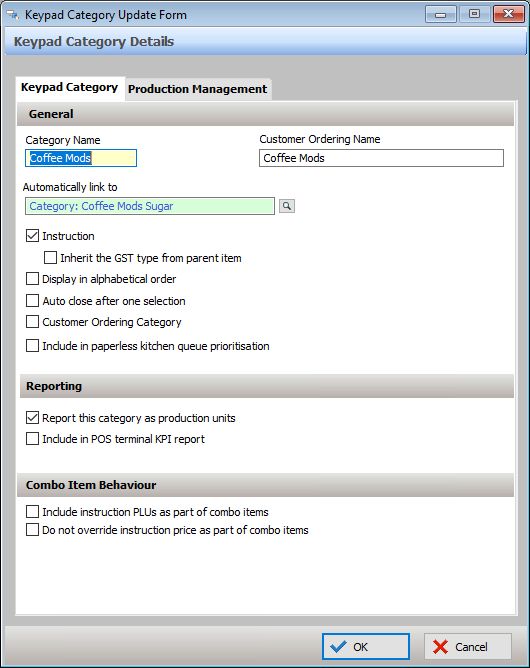
The options available on the screen are described below:
Completing Keypad Category Details: •Name - Type a category name here;
Linking Keypad Categories Each category can be linked to another Category which is a lower level list. In the above screen the Coffee Mods category is linked to a category of Coffee Mods Sugar. When a coffee PLU is selected and the coffee mods (such as Weak, Skinny, Soy, etc) is chosen, the Coffee Mods Sugar options will display automatically (No Sugar, 1 Sugar, 2 Sugar, Equal etc). You can set up a chain of links for as many categories as needed. Keep in mind that if you link a category to another category then the linked pop-up will be displayed for every PLU that is assigned to that first category. See section Understanding Category Linking for further explanation. Note: If the linked category is only applicable to some of the items, rather than the whole category, it is better to make use of the ‘Automatically linked to category’ feature which is specific to individual PLUs. See section PLU Details > Automatically Linked to Category.
Keypad Category Settings •Instruction This setting defines the category as instructional. That is, all PLUs within the category are considered instructions. They will be indented five spaces from the item that precedes them on a production docket or production display, and if you have a dual colour printer, the instruction PLUs will be printed in red. •Inherit the GST Type from parent item This setting means that an instructional item will use the same GST type as the item that preceded it. •Display in alphabetical order This instructs the POS system to display the PLUs in this Category in alphabetical order within a category pop-up. Note: This option will only apply to this category. Should you wish to have all categories displayed on the Terminal in alphabetical order you should use the local system settings option. See section: Location System Settings > POS Terminal Settings > Display General for more details. If this option is not enabled, the category will be displayed within the pop-up, in order of entry by PLU number. •Auto close after one selection If this setting is enabled, when a pop-up box is displayed for this category it will automatically close after one selection has been made. If you do not enable this option the category pop-up box will remain open while you select all items you require, until the Close button is pressed. •Customer Ordering Category This option is only available when the Polygon Customer Ordering add-on module has been purchased. Ticking this box makes the category and its PLUs accessible from Polygon Customer Ordering product keypads. •Include in paperless kitchen queue prioritisation This option will determine if the items in this category will qualify for prioritisation within the paperless kitchen queues. Note: Orders which contain no PLUs from categories included in prioritisation will always be released to the KMS immediately.
To implement Paperless Kitchen Queue Prioritisation you may also need to: Enable Paperless Kitchen Queue Prioritisation Assign Priority to Web Menu Ordering Providers Assign a KMS Role as the Queue Controller
•Report this category as production units This enables the category to be available in selected reports as a production unit. This means that rather than report the dollar value associated with the PLUs in the category, the system can report on the number of PLUs sold, and will only compile from categories with this tag selected. These reports include Sales by Hour (weekly – same day comparison) and Sales by Half Hour (weekly – same day comparison). See Also: Front of House > Reports •Include in POS Terminal KPI report If you have asked your system to print the KPI addendum on your Z-Read report, this will include this category in the KPI addendum. See Also: Polygon POS Management > POS Terminal Settings > Printing Z-Report •Include instruction PLUs as part of combo items See section PLU Item Details > Pricing and Loyalty Details for details on how a combo is created. If the items within the category you are creating have a sale price attached to them, you may need to specify that they are part of the ‘Combo Items Quantity’ that will be included in the price. That is, they are one of the available options in the combo. •Do not override instruction price as part of combo items If you are making use of combo PLUs this option instructs the system that instructional extras in this category that have a price attached to them should still be charged for as an extra cost, and therefore not included in the price of the combo. See Also: PLU Details > Combo PLU
|

See Also:
Getting Started with Polygon POS Management
Polygon POS Management > Keypads Overview
Polygon POS Management > Product Keypads > Category Keys
Polygon POS Management > Category Printing