Category printing refers to the assignment of Keypad Categories (Legacy POS) or Production Categories (Polygon POS) to a particular printer or monitor. In other words, you determine which items will print at which printer or kitchen display. If only one production device is being used, then there may be items that you do not want to print. On the other hand, if more than one production device is being used then you may wish to designate certain categories to each printer.
For example, if there is a production device in the kitchen and a production device at the bar then you might assign all the food related categories to the ‘Kitchen’ device and all the beverages to the ‘Bar’ device.
Category printing can be configured for production printers, Production Displays (bump screens) and also customer receipt printers.
Setting up Category Printing
Step 1 - Access the Production Categories form
•From Polygon POS Management,
•Access POS Network File by clicking the POS Network button on the toolbar,
•Highlight the POS Peripheral which wish to configure (eg. a Production Printer) and then click the Change button
•Select the Category Printing tab
•Click on the Assign Production Categories button
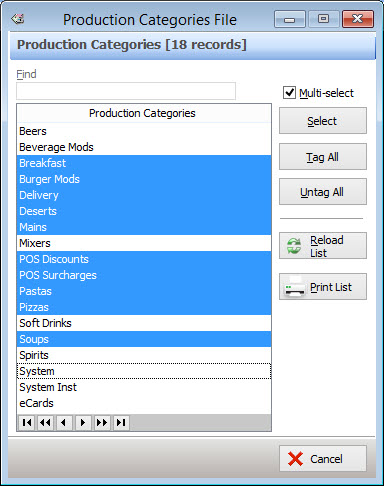
Step 2 - Select the appropriate categories
•The Production Categories file will be displayed and all previously assigned categories will be highlighted
•Highlight any additional categories to assign and click Select
•To untag an item hold the Ctrl button on the keyboard and click on the category name
Note: If you need to select more than one category then tick the 'Multi-select' checkbox before selecting the required categories.
Handy Hint: It is sometimes easier to ‘Tag All’ and then untag those categories not required.
Step 3 - Confirm selection
•Click the select button to assign the selected categories
•Click OK
Note: Customer receipt printers automatically include any item which has a price. Only items with $0 costs needed to be added for customer receipt printers.
Note: Whenever a new category is created (see section Keypad Categories Overview if you utilise Legacy POS or Production Categories Overview if you utilise Polygon POS) you will need to assign this category to the relevant production printer in order for it to print on that printer.
See Also:
Polygon POS Management > POS Peripherals > Receipt Printer
Polygon POS Management > POS Peripherals > Production Printer
Polygon POS Management > POS Peripherals > Production Display
Polygon POS Management > POS Network File
Getting Started with Polygon POS Management