Categories group together a set of related PLUs (e.g. Mains, Salads, Red Wines, Hot Beverages; etc.). You can assign a category to a keypad button and when the user presses that key, all the PLUs belonging to that category are displayed on the Terminal’s screen, allowing the operator to choose one from the list.
For Legacy POS installations, keypad categories are also used to define what items will be sent to a particular production printer or production monitor. See this section for more information about Category Printing.
For Polygon POS installations, production categories are created specifically to group related PLUs together for the purpose of production output (production printers and kitchen displays). See this section for more information about Production Categories.

From Polygon POS Management, Select the Keypad Categories icon from the toolbar, or, Select Keypads from the Main Menu and then select the Keypad Categories
|
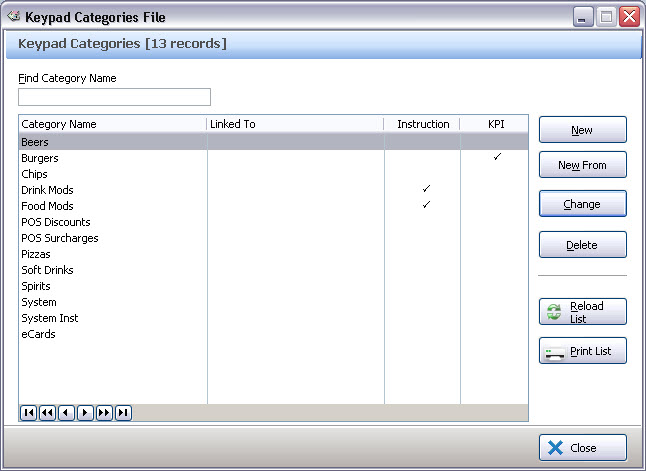
The following options are available from the Keypad Categories File:
•To create a new Keypad Category - Click on the New or New From button to access the Keypad PLU Category Details form;
•To edit an existing Keypad Category - Click on the Change button to access the Keypad PLU Category Details form;
•To delete an existing Keypad Category - Highlight the Keypad Category and then click on the Delete button;
•Reload List - This button is used in multi-user installations where multiple users may be entering data at the same time. Clicking this button will refresh the displayed data and show any changes made by other users;
•To Print - Clicking on the Print button generates a PDF report which shows the currently listed Keypad Categories. This report can be saved, printed or converted to CSV format.
See Also:
Getting Started with Polygon POS Management
Polygon POS Management > PLU Classes File