The Polygon Promo player enables promotional content (images, videos and web pages) to be presented to customers along along side purchase information and and loyalty account information. This information is displayed to customers from customer facing computer monitors. To enable a promo player display for a POS terminal, a Promo Player Peripheral must be assigned to that POS terminal. This form is used to edit existing promo player configuration or add a new promo player scales a POS terminal. This form is accessible from the POS Peripheral Details form.

From Polygon POS Management, Access POS Network File by clicking the POS Network button on the toolbar, Highlight the POS Terminal that you wish to add a peripheral to, then either: •Click the New button, then select Peripheral, then set the Device Type to Promo Player, or, •Highlight an existing Promo Player peripheral and click the Change button.
|
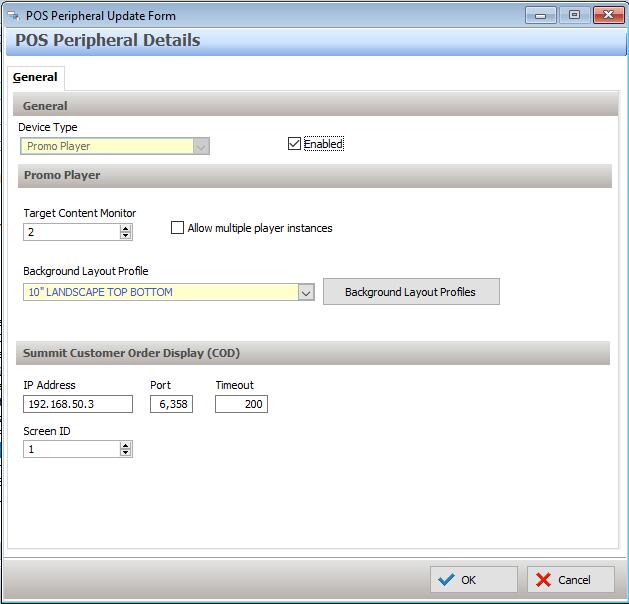
To configure a Promo Player Peripheral set the Device Type to "Promo Player"
The following options will become available:
•Enabled - When this tickbox is ticked, the promo player will be configured to operate as usual. When un-ticked, the promo player will be deactivated and will not display content.
•Target Content Monitor - This value identifies which monitor on the POS terminal will be used as the promo player display. This is normally monitor number 2.
•Allow multiple player instances - Ticking this tick box will allow you to configure more than one promo player monitor to be attached to this POS terminal. Note: The physical POS terminal hardware must have enough display connectors to attach multiple monitors in order to make use of this feature.
•Background Layout Profile - Select the Background Layout Profile which matches the screen dimension which you will be using. The correct profile will depend on the size and dimensions of the customer facing monitor which you will be using. If you are unsure which profile to use or if no profiles are available, please contact the Redcat support team for assistance. The Redcat support contact phone number is 1300 473 322 - then select option 3 for support. Alternately, the Redcat Support team can be contacted at this email address support@redcat.com.au
Communication settings for the Summit Drive Thru interface are included when setting up the Polygon Promo Player peripheral, if the the module is licensed. (if unlicensed, this section will be hidden).
Complete the Summit Customer Ordering (COD) settings as required.
| IP Address: | Enter the static IP address of the Summit COD |
| Port: | The default port (6358) will be automatically prefilled. This can be changed if required. |
| Timeout: | The default timeout of 200 (2 seconds) is automatically prefilled. This can be changed if required. |
| Screen ID: | The default screen ID of 1 is automatically prefilled. Change this if you are configuring for second or subsequent Summit COD. |
See Also:
Polygon POS Management > Promo Player General Information
Polygon POS Management > Summit Drive Thru General Information
Polygon POS Management > POS Peripheral Details
Polygon POS Management > POS Network File