The POLYGON PAYROLL module reached end of life on 30 June 2021 and this was communicated to all clients licensed with this module.
This module is no longer supported.
Historical transactions may be accessed although entry of new payslips is no longer possible.
Single Touch Payroll Phase 2 has not been implemented.
You no longer need to ISSUE Payment Summaries
As a result of STP you no longer need to issue Payment Summaries to your employees at the end of each financial year (or when they leave your employment). The STP files you upload contain the YTD figures for your employees each time you issue a payroll run. The ATO makes these figures available to your employees through their online MyGov. account.
You still need to COMPILE Payment Summaries
Even though you no longer need to issue a payment summary to your employees, you will still need to follow the process to compile them. It is during this process that you add details that cannot be entered anywhere else, or automatically recorded, such as amounts for union fees or workplace giving, reportable fringe benefits and reportable superannuation amounts, and amounts for lump sum payments. If you make eligible termination payments (ETP) to an employee, these are also recorded here.
•To access the Payment Summaries, choose Payroll | Payment Summaries from the main menu.
•Enter the relevant year in the Financial Year Ending On box and choose the Calculate Totals button.
•Double click on an employee record, or highlight the record and choose the Change button.
•Review the data displayed, add or change amounts as required and ensure that you tick BOTH the Processed and Locked boxes. This will ensure that the record for this employee does not change and indicates that it is ready to be reported as Final to the ATO.

For more detailed information on compiling payment summaries, see section Polygon Payroll > Payment Summaries. For more information about ETP Payments, see section Polygon Payroll > Employee ETP Payment Summaries.
Reporting your Final STP for the year
Once you have run the final payroll for the year, and have compiled and checked the payment summary data (including tagging each employee as Processed and Locked), you can create your STP file including a final indicator for each of your employees. This is the equivalent of submitting your Payment Summary Annual Report (PSAR) in previous years.
Note: When you tick the This is final STP for the year box, you will be presented with a message advising that you need to compile, process and lock the payment summaries prior to running the file.
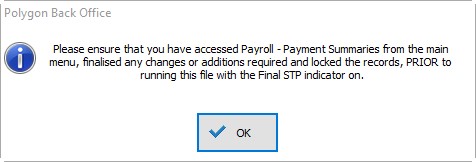
The system will not let you create the file without first compiling, processing and locking the payment summaries.

Reporting Finalisation with the Payroll Run
If you are ready to finalise at the same time you report your STP for the final payroll run of the year:
•Process your final payroll run for the year.
•Compile your Payment Summaries ensuring that you apply the Processed and Locked flags to each employee.
•Access the reports file and choose the Single Touch Payroll (STP) File.
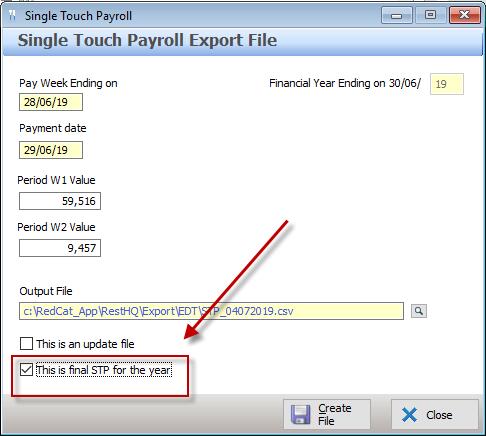
•Complete the report criteria as described above; and ensure that the This is final STP for the year box is ticked.
Reporting Finalisation Outside of Payroll Run
If you are reporting the finalisation of your year after the STP file for the final payroll of the year has been reported, you will need to upload an Update file.
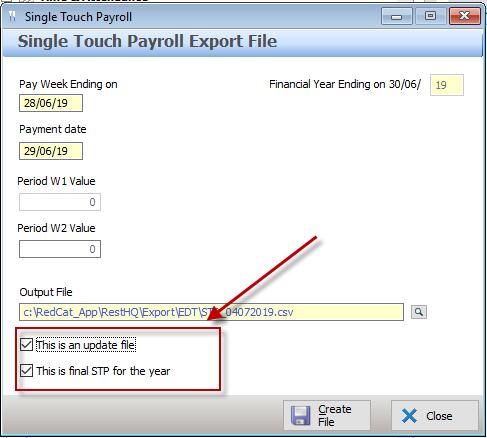
•Enter the Pay Week Ending and Payment Date – this will be the last pay week ending and payment date of the financial year you are finalising.
•If there are figures listed in the Period W1 Value and Period W2 Value boxes, change them to 0.00
•Ensure that the Output File location is set.
•Place a tick in the This is an update file box – the Period W1 and Period W2 entry boxes will be disabled.
•Place a tick in the This is final STP for the year box.
•Choose the Create File button.
Next Single Touch Payroll Topic:
Single Touch Payroll > Uploading and Lodging Your STP File
See Also:
Polygon Payroll > Using Single Touch Payroll
Polygon Payroll > Getting Started with Single Touch Payroll
Polygon Payroll > Single Touch Payroll > Summary
Polygon Payroll > Getting Started
Polygon Payroll > Using Polygon Payroll