The POLYGON PAYROLL module reached end of life on 30 June 2021 and this was communicated to all clients licensed with this module.
This module is no longer supported.
Historical transactions may be accessed although entry of new payslips is no longer possible.
Payment Summaries
Polygon Payroll includes the functionality to report Payment Summary information to the Australian Taxation Office (ATO) via removable disks, and to print Payment Summaries for your employees on plain paper.
If you intend to use this facility, you will need to contact your local taxation office branch and advise them that you intend to:
•report payment summary information on removable disk; and
•print your payment summaries on plain paper.
You will also need to contact your local Australian Taxation Office branch and have them confirm your ‘Supplier Number’ to be used when completing the removable disk data.

From Polygon Back Office, Select Payroll from the main menu, Then select Payment Summaries
|
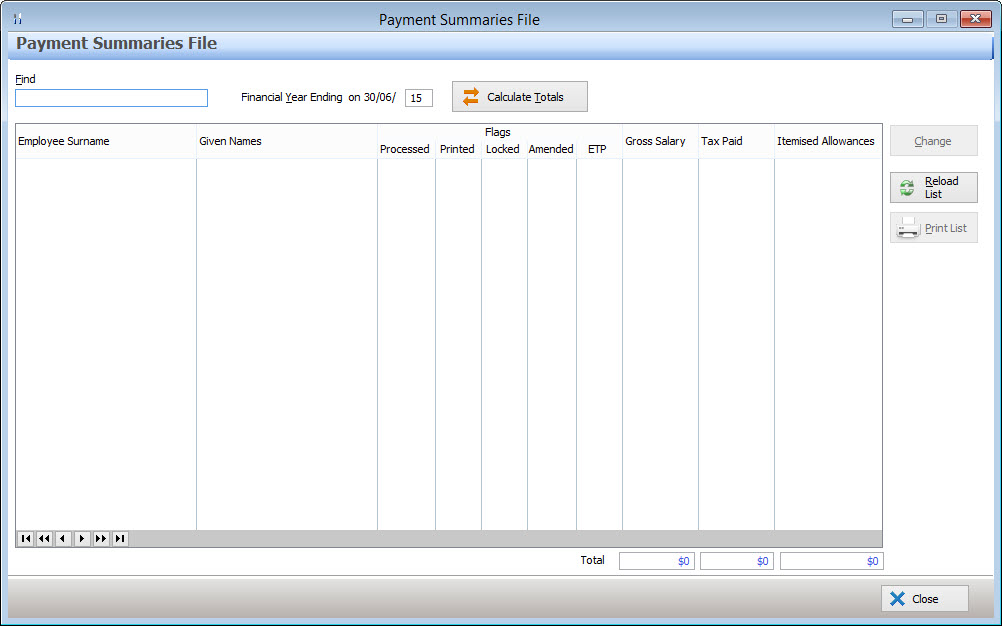
The Payment Summaries File is used to generates payment summaries for each employee paid in a specified financial year. This information should be reviewed and updated if necessary before being marked as processed and sent to the ATO.
Employer Information
Polygon Payroll automatically fills payment summary employer information from Polygon Back Office company registration file. Please check this information is correct before sending payment summaries to the ATO. To view this supplier information, go to the Application Settings by selecting File from the main menu, then selecting Application Settings. Expand the Licensing heading at the left of the form, then select Registration. The delivery address and contact information at the right of the form can be edited directly from this file. The company name, ABN, ACN and Postal Address are at the right of the form are read only. If any of this information is incorrect please contact Redcat by phone on 1300 473 322, then select option 3 for support, or by email at support@redcat.com.au.
To generate payment summaries:
Enter the ending year of the financial year which you are generating payment summaries for (in the Financial Year text box);
Click the Calculate Totals button to compile the information from the payroll entries and display it;
The displayed list shows a summary of the employee payment summaries. Payment summaries which have been marked as processed are shown in grey with a tick in the Processed column.
Payment Summaries which have been printed show a tick in the printed column;
If an ETP Payment Summary has been saved for this employee, the ETP column will show a tick.
To sort payment summaries by a particular column, click the column heading at the top of the list, click the column heading again to reverse the sort order
To search the list by Employee Surname type all of or part of the employee surname into the Find text box;
Reviewing Payment Summaries:
It is important to confirm all the information on the Payment Summary Details Form is correct before sending payment summaries to the Australian Tax Office. To review the payment summary data, double click on each employee. This will display the Payment Summary Details Form which shows payment summary data for the selected employee;
Changing Payment Summaries - To save changes to any edited data on form, tick the Locked tick box at the top right of the form, then click the OK button. This will also prevent the data shown on the Payment Summaries form from being changed if figures affecting these amounts are changed.
Marking Amended Payment Summaries - Ticking the Amended tick box at the top right of the form will display a notice at the top of payment summaries saying "This is an amended payment summary".
Marking Payment Summaries as processed - Clicking the Processed tick box at the top right of the form indicates that the data on this form has been verified. Only employees which have been marked as processed will be included in the final payment summary run or the digital payment summaries file which is sent to the ATO.
The Payment Summary Details Form Displays the following information:
Employee Details - The employee details, including tax file number and address, are automatically filled and are read-only on this form. This information can only be edited from the Polygon Payroll > Employees Details form.
Please note that only allowances that have been tagged to print separately on the payment summary (see the section on setting up Allowances and Deductions File for more detail) will be shown in the allowances section of the payment summary. Allowances that have not been tagged to show separately have been added to the gross payment figure for the employee. Allowance that have been tagged not to be shown on the payment summary are totally excluded, they are not listed in the allowances section and neither are they added to the gross salary amount. Additional Allowances can be added from this form by clicking on the Line Item button
For more information about completing the reportable FBT or CDEP fields, please contact your accountant or financial advisor.
|
 and then selecting an allowance/deduction from the Payroll Allowances Pick List the amount of the allowance can be changed in the amount column to the right of the description column.
|
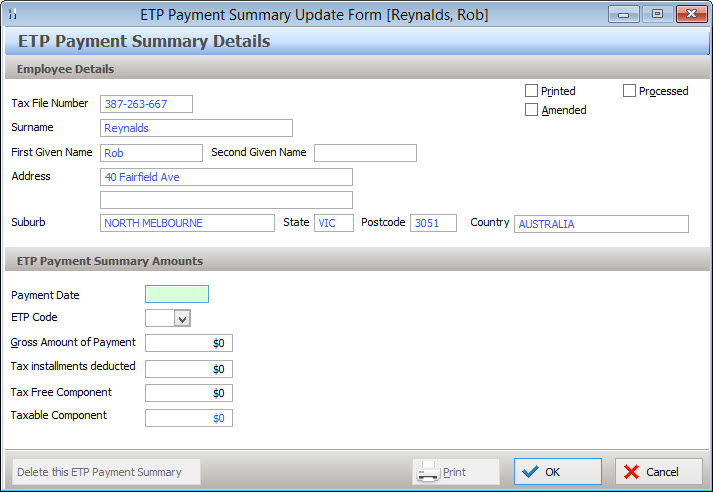
Complete any figures which need to be recorded in the Lump Sum Payments section. If you need to issue an employee with an Eligible Termination Payment (ETP) Payment summary, press the browse button next to the text saying "C - use ETP payment summary" circled below. This will load the ETP Payment Summary Update form. Check these figures and correct any errors. Tick the processed tick box to mark this ETP payment summary as checked. Only processed ETP payment summaries will be included in ETP payment summary run reports. Ticking the Amended tick box to will add a a note saying "This is an amended payment summary" at the top of this ETP payment summary. For advice on completing either the Lump Sum Payments or the ETP Payment Summary, please contact your Accountant or Financial Advisor.
The following options are available from the ETP Payment Summary Details form •Saving - Click the OK button to save changes, or click the Cancel button to discard changes; •Printing - Once an ETP payment summary has been saved it can be printed by re-opening and clicking the Print button. If an ETP summary is marked as processed, it will also be included in the ETP Payment Summary Run Report (see below). All processed ETP Payment summaries can be printed from the ETP Payment Summary Run Report (documented below); •Deleting - Clicking the Delete this ETP Payment Summary button will remove this ETP payment summary from the system.
|

Individual Payment Summaries Individual payment summaries can be printed individually by clicking the Print button on the Payment Summary Details form. The name of the authorised person is entered automatically. This name can be edited if needed.
Printing All Processed Payment Summaries All payment summaries which are marked as processed can be printed together by running the Payment Summary Run report. To run this report: •From Polygon Back Office, •Access the Reports File by selecting Reports from the main menu, or clicking the Reports button on the toolbar. •Scroll down to the Polygon Payroll [Payment Summaries] heading; •Highlight Payment Summary Run, then click the Select button; When the selection criteria form is loaded: •Specify which financial year this report will be run for by entering end of financial year date at the top of the form; •The name of the authorised person is automatically entered . This name can be edited; •Leave the Nominate Employee tick box un-ticked in order to print payment summaries for all processed employees; •Click the Print button to display a payment summary PDF report, click the print button to print a hard copy of this report or save a PDF copy.
Emailing Payment Summaries If you have entered email addresses for your employees in the Employee Update Form you may choose the email their payment summaries rather than printing them out. To do this: •From Polygon Back Office; •Access the Reports File by selecting Reports from the main menu, or clicking the Reports button on the toolbar; •Scroll down to the Polygon Payroll - Payment Summaries heading; •Highlight Payment Summary Run, then click the Select button; When the Selection Criteria form is loaded: •Nominate an employee by ticking the Nominate Employee tick box and then clicking the browse button •, or leave this tick box blank to include all payment summaries which have been marked as processed; •Place a tick mark in the Generate to PDF and eMail payment summaries box; •Enter the Message Subject and Message Text for the email message. Note: Each employee will get the same message text; •Click the Print button to run the report. Polygon Payroll will generate a PDF file for each payment summary and attach them to the email messages sent to each employee. At the completion of the email process, the report will display with the payslips, you may choose to print this, or close the report without printing. If during the email process, there were errors reported, a report with the the error log information will be displayed e.g showing employees with invalid or missing email addresses.
Note: In order to email payment summaries, email server information must be entered into the application settings. See section Polygon POS Management > Application Settings > General - eMail, and staff email addresses must be entered on the Polygon Payroll > Employee Details form.
Printing & Emailing ETP Payment Summaries ETP Payment Summaries are printed separately by accessing the ETP Payment Summary Report. Only ETP payment summaries which are marked as processed can be printed by running the ETP Payment Summary Run report. To view ETP Payment Summaries: •From Polygon Back Office, •Access the Reports File by selecting Reports from the main menu, or clicking the Reports button on the toolbar. •Scroll down to the Polygon Payroll - Payment Summaries heading; •Highlight ETP Payment Summary Run, then click the Select button; When the selection criteria form is loaded: •Specify which financial year this report will be run for by entering end of financial year date at the top of the form; •The name of the authorised person is entered automatically. This name can be edited if needed; •Leave the Nominate Employee tick box un-ticked in order to print payment summaries for all processed employees, or select an individual employee to limit the report to one Employee; To automatically email these ETP Payment Summaries to the employee email addresses in the Employee Details File: •Tick the Generate to PDF & eMail payment summaries tick box; •Enter the Message Subject and Message Text for the email message. Note: Each employee will get the same message text; •Click the Print button to display an ETP payment summary PDF report, click the Print button to print a hard copy of this report or save a PDF copy.
|

|
Creating Electronic Media Information for the Australian Taxation Office A record of the summaries in the format specified by the ATO can be created by Polygon Back Office for forwarding to the ATO. To do create an ATO Disk File: •From Polygon Back Office; •Access the Reports File by selecting Reports from the main menu, or clicking the Reports button on the toolbar; •Scroll down to the Polygon Payroll - Payment Summaries heading; •Highlight ATO Export File, then click the Select button; •Enter the Financial year ending date to specify which financial year the export file will be for; •Employer details including Contact Name and Contact Phone are automatically filled and read-only. These items can be edited from the Polygon POS Management Application Settings. In the Licensing section, under the Registration heading. •Select where to save the export file to by clicking the browse button •Ensure that the Run Type is set to Production; •On completion of the file creation, click the Create File button. A file called EMPDUPE.A01 will be saved to the specified folder. This file can be put on a CD-ROM, DVD(No DVD-RAM), USB/flash drive or a number of other media types and then sent to the ATO; A Payment Summary Magnetic Media Form must be sent to the ATO with this disk. To Create a Magnetic Media Form: •From Polygon Back Office; •Access the Reports File by selecting Reports from the main menu, or clicking the Reports button on the toolbar; •Scroll down to the Polygon Payroll - Payment Summaries heading; •Highlight Magnetic Media Form, then click the Select button; •Enter the year ending date to specify which financial year the form will be for; •Select the Media Type that you will be sending to the ATO; •In the Media Identifier box, type the words with which you will label your media – this must be no more than 6 alpha/numeric characters; •Choose Print button to have the report previewed on your screen. Print the report and send to the ATO with your media as described below.
Sending the Media to the Australian Taxation Office Attach a label with the unique identification entered above to your media. For example, Advanced Computer Products & Advice Pty Ltd, might label the disk ACPA1. The identifier must be no more than 6 alpha/numeric characters. Ensure that the ‘Magnetic Media Information, Payment Summary Reporting’ form printed has been included with your media. The media must be packed in a disk mailer or envelope with cardboard stiffener and mailed to the following address provided on the form: Please note that your Annual Reconciliation still needs to be completed manually and forwarded to your local taxation office by the due date.
|
See Also:
Getting Started with Polygon Payroll
Getting Started with Polygon Back Office