If you wish to manage the levels of cash in each cash drawer during trade, a Cash Drawer Clearance can be performed to allow excess cash to be removed.
The Cash Drawer Clearance function can be enabled from POS Location Settings > Cash Drawer Clearances. If this setting has been enabled, staff members will be prompted with the following message when the Cash Clearance Threshold is reached:
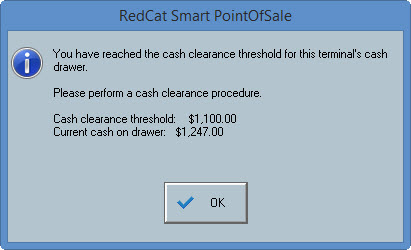
Note: This message will be displayed after every sale until a Cash Drawer Clearance is performed.
Only staff members which have been granted the Reset Master Terminal (POS Manager) privilege are able to perform a Cash Drawer Clearance (See Section POS Staff Details > Privileges > Reset Master Terminal (POS Manager)
To Perform a Cash Drawer Clearance
•Log into the POS Terminal and go to the Product Keypad
•Press the Sales Reports button 
•Enter password when prompted
•Highlight Cash Drawer Clearance and press Select.
•Enter the amount of cash you wish to clear (if a Cash Clearance amount has been set, this will be the default amount that appears).
•Press Yes to confirm.
•Click on the Print button, if you wish to print the Cash Drawer Clearance Receipt for your records.
|

Cash Drawer Clearance Receipt
To view processed Cash Drawer Clearances
•Log into the POS Terminal
•Go to the Product Keypad
•Press the Sales Reports button .
•Enter password when prompted.
•Highlight Cash Drawer Clearance Report and press Select.
•Click on the Print button, if you wish to print the Cash Drawer Clearance Receipt for your records.
|
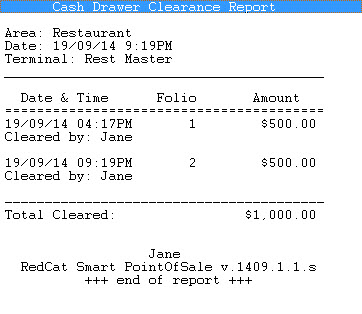
Cash Drawer Clearance Report
Note: Each Cash Drawer Clearance is given a unique ‘Folio number’ for tracking purposes.
See Also:
Polygon POS Management Introduction
Polygon Back Office Introduction