If you have purchased the Polygon Payments Interface (integrated EFTPOS module), you will need to setup EFT Pinpad peripheral on each POS terminal which will have an integrated EFTPOS pinpad attached. This form enables you to add an integrated EFTPOS Pinpad or edit integrated EFTPOS Pinpad settings, it is accessible from the POS Peripheral Details form by setting the Device Type to EFT Pinpad.

From Polygon POS Management, Access POS Network File by clicking the POS Network button on the toolbar, Highlight the POS Terminal that you wish to add a peripheral to, then either: •Click the New button, then select Peripheral, then set the Device Type to EFT Pinpad, or, •Highlight an existing EFTPOS Pinpad peripheral and click the Change button.
|
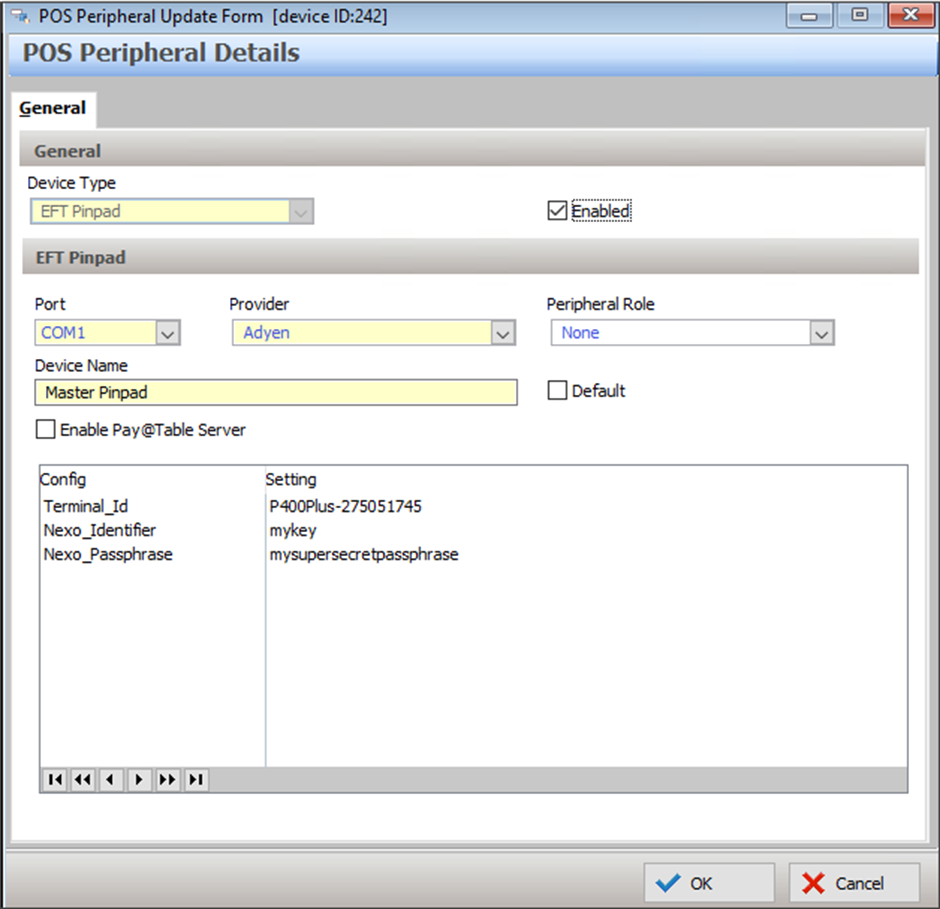
Device Type
This option is only changeable when creating new peripherals. Select EFT Pinpad here.
Enabled
This setting will automatically be selected and should only be un-ticked if a peripheral is temporarily out of use
Port
Select which COM port the device with be connected to on the POS terminal.
EFT Pinpads which attach via a USB port emulate a COM port. Select the COM port is being emulated by the EFT Pinpad here.
To enable an EFT Pinpad on this terminal that is connect to another POS terminal, choose NETWORK as the port. A list of EFT Pinpads programmed on other POS terminals for this location will be displayed, select the required pinpad.
Provider
Select the EFTPOS provider from the drop-down list.
Peripheral Role
This setting is only available when the selected provider is Adyen and Cloud Config for integrated EFT payments has been enabled.
Select the relevant peripheral role from the drop-down list.
Device Name
Give the peripheral a device name so that it is easily identified.
Default
This setting is only available when the selected provider is Adyen and Cloud Config for integrated EFT payments has been enabled.
Indicate if this EFT pinpad is the default pinpad for the POS terminal - the POS will use this to determine which pinpad to issue the payment to if an EFT fast finaliser is used that does not 'target' or 'lookup' the peripheral roles.
Config Settings
These settings are only available when the selected provider is Adyen and Cloud Config for integrated EFT payments has been enabled.
If these settings are not completed, the configuration settings from the EFTMgr application at the POS Terminal will be used.
You can find more information on how to obtain the relevant field values in this article: Adyen Eftpos Interface Guide.
See section Polygon POS Management > Location Settings > Add on Modules > Polygon Payments Interface for instructions explaining how to enable Polygon Payments Interface, and Cloud Config settings.
See Also:
Polygon POS Management > POS Peripheral Details
Polygon POS Management > POS Network File
Getting Started with Polygon POS Management