Configuration settings for any installed optional Redcat add-on modules are available from this area.

From Polygon POS Management, Access the POS Network File by clicking the POS Network button on the toolbar, Right-click on the POS Location which you wish to configure, Select POS Location Settings from the popup menu which appears,Select POS Location Settings from the popup menu which appears, Expand Polygon Add-On Modules from the tree menu at the left of the form.
|

This section refers to the web based Customer Displays available for Polygon POS only. Enable Customer Display integration This setting needs to be enabled for the POS terminal to send data to the Customer Display. Endpoint: The default endpoint is 127.0.0.1 Port: The default port is 8085 Do not change these values unless instructed by Redcat.
The display is programmed as a peripheral on the POS Terminal. You can find details on programming the peripheral here. |

Polygon Customer Ordering allows customers to place orders online. These orders are integrated with the POS terminal and form part of the sales for the day. Orders are released to production at the time predetermined to allow the order to be completed at the time requested by the customer.
General Enable the Polygon Customer Ordering Interface module This setting needs to be enabled to use the Polygon Customer Ordering module. Choose the Web Framework Type - Legacy is used for SmartLoyalty systems, while Polygon Central is for Polygon Loyalty.
Polygon Customer Ordering Server Address: Enter your Polygon Central URL. Port: The port should be 443. Enable SSL: This security setting should be enabled.
Use Redcat Web Ordering infrastructure This must be enabled for Redcat native ordering. Polygon Customer ordering file server address: The default server address is ftpso.redcat.com.au Port: The port shoudl be 443. Enable SSL: This security setting should be enabled. Server poll interval: The default interval is 5 seconds.
SmartOrder server: Choose the terminal that will poll for and receive web orders - this is usually the master terminal. Print Web Order Manifest dockets: Enable this setting if you need a manifest docket printed to accompany web orders. Enable Web Table Ordering: Enable this setting if you choose to offer Order to Table via online orders.
Kiosks Enable Kiosk functionality This setting must be enabled if you want customer self-ordering kiosks to interact with the POS terminals. |
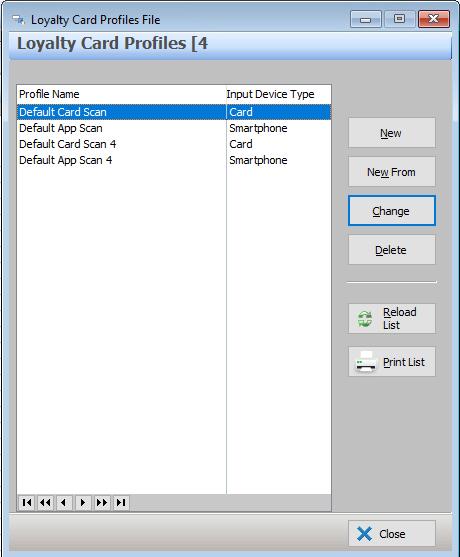
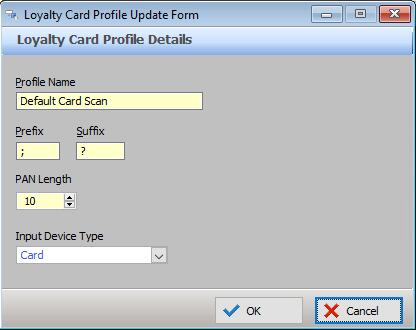
General POS terminals inherit the parent POS Location department If you enable this setting the POS Location department will override any departments that have been set for POS Terminals at that location.
Enable Virtual Brands functionality This setting is required if Virtual Brand data is to be passed through the Enterprise.
Check for Internet Updates on Application Entry This setting instructs the system to automatically check for updates that may have been sent to the POS terminal either from the Head Office or the Franchisee BOH database when the POS Terminal application is launched. This is useful to ensure that each store in the enterprise starts the trading day with the latest information available.
Web Connectivity These read-only settings are used by Redcat support staff.
|
|
The Polygon Payments Interface module enables POS terminals to communicate directly with integrated EFTPOS pinpads. This can improve the speed of EFTPOS transactions and reduce the chance of user error.
General Enable the Polygon Payments Interface module Ticking this tick box will activate the Polygon Payments Interface integrated EFTPOS module.
Enable tip adjustments This setting allows you to handle tip adjustments on finalised EFTPOS sales, when using Polygon Payments Interface.
Print two copies of the EFT receipt If you enable this setting the system will automatically print two copies of the EFT receipt, so you can keep one copy and give the customer the other copy.
EFT Media / Merchant card assignment This is a Default System Setting and only applies to users with the Polygon Back Office module. It allows you to map integrated EFTPOS codes to Merchant Cards in Polygon Back Office.
Once you have enabled Polygon Payments Interface you will need to configure the connection between your pinpad(s) and your terminal(s), and also setup a button to be used at the FOH when finalising EFTPOS payments. See section Polygon POS Management > POS Peripheral Details for instructions explaining how to configure an EFTPOS pinpad peripheral connection . See section Polygon POS Management > Media Type Details for more information about creating an integrated EFTPOS Payment button.
Enable the Zip Payment Gateway If you enable this setting, the POS terminal will be able to accept payment from either a ZipPay or ZipMoney account to finalise a sale. The payment will be processed via the PCEFTPOS payment gateway and will require the customer to enter an authorisation code on the pinpad. Note: this functionality is currently not available via any other eftpos payment gateway. Enabling this setting will create a system merchant card (Zip) to facilitate the payment process. Once you have enabled the Zip Payment Gateway you will need to create a media button to be used at the POS when accepting Zip payments. See section Polygon POS Management > Media Type Details for information about creating a merchant card media button.
Eftpos Configuration This section is used with Adyen eftpos integration to enable functionality where a payment request can be issued from any POS terminal in the network to any Adyen eftpos pinpad.
Enable Cloud EFT Config Ticking this tick box will instruct the POS system to use the cloud configuration for integrated payments with Adyen pinpads. If this is not enabled, the POS will use the local configuration programmed in the EFTmgr application. Adyen Global Config 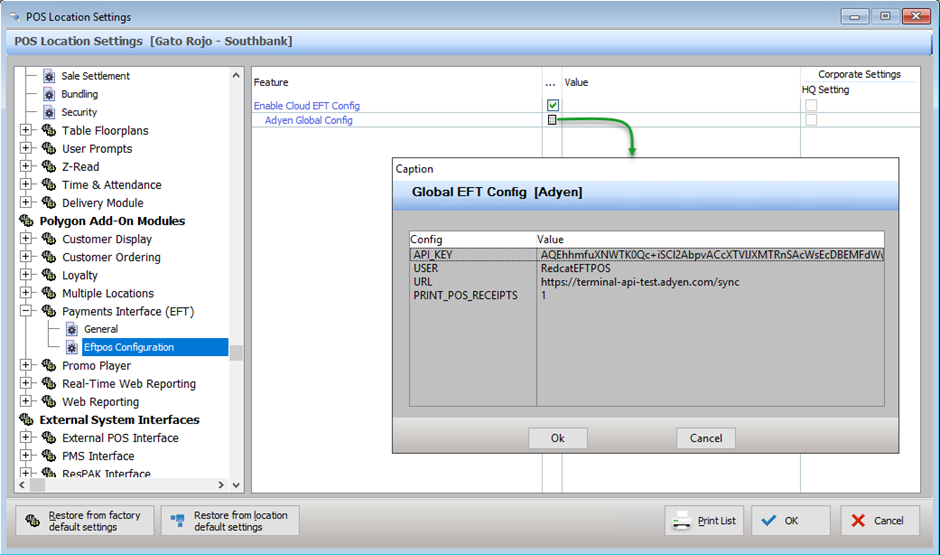
|
Enable real-time transaction processing When this setting is enabled, POS terminals will send the gross, GST, net figures of every sale to Polygon Web Reporting when the sale is finalised. Post speed-of-service data from Paperless Kitchen in real-time When this setting is enabled, records detailing the length of time taken to either serve orders in the Paperless Kitchen, or progress them through each step of a programmed workflow will be sent to Polygon Web Reporting as they are served/pushed. Post directly to Polygon Central database When this setting is enabled, Paperless Kitchen records will not be recorded in the Polygon POS Management database. This setting is designed for use in conjunction with a Polygon Central configuration setting that will not pass the real-time transactions to the BOH database.
Polygon Real-Time server address: Enter the relevant server address - [clientname].redcatcloud.com.au. This will be set by Redcat staff. Port: Enter the relevant port (443) Enable SSL: SSL should be enabled.
|
Legacy (SmartReports) Enable the Polygon Web Reporting module Tick this setting to enable the online reporting Polygon Web Reporting module.
Polygon Web Reporting server address This setting is read-only and used by Redcat staff.
Port This setting is read-only and used by Redcat staff.
Post Z-reads at real time If this setting is enabled, basic sales information will be sent directly to Polygon Web Reporting after a sales reset (see section Closing Procedure). Note: Detailed sales information is still sent to the Polygon POS Management back-of-house, and then sent to Polygon Web Reporting after a Revenue Download is performed.
Post each POS transaction at real-time When this setting is enabled, POS terminals will send the gross, GST, net figures of every sale to Polygon Web Reporting when the sale is finalised.
Daily Automated Balance Sheet (DABS) Post Daily Automated Balance Sheet (DABS) totals This setting enables the DABS functionality. DABS is an optional feature of Polygon Web Reporting. If enabled, extra information will be generated as part of FOH sales resets and a web based data entry form will automatically load at the FOH when sales are reset.
|
See Also:
Getting Started with Polygon POS Management
Polygon POS Management > POS Location Settings