At the end of each trading day (or at the end of each trading period) you will need to obtain a Z-Read printout for each area, balance the POS terminals for each area and send sales data to the BOH. This is called a sales reset. This section explains the steps required to reset a master terminal's sales.
Note: This function may only be performed by a staff member who has been given the Reset Master Terminal privilege. See section Polygon POS Management > POS Staff Accounts for more information about assigning POS Staff privileges.

Once trade is completed, sales can be reset for one particular POS Area Section, or for the entire POS Area. Performing a POS Section reset is optional, however if a section reset is completed for one POS Section, then a section reset must be completed in all POS Sections before the POS Area reset can be completed on the Master terminal. Click here for further information about the optional POS Section Reset function.
To reset an entire POS Area: •Log on to the master POS Terminal for this POS Area; •If table floorplans are used, click the Over The Counter Sale button; •Click the Sales Reports button The Sales Reports & Reset Functions window will be displayed;
•Click on the Reset Sales button The Master Till Reset screen will be displayed showing the system calculated balances for each media type.
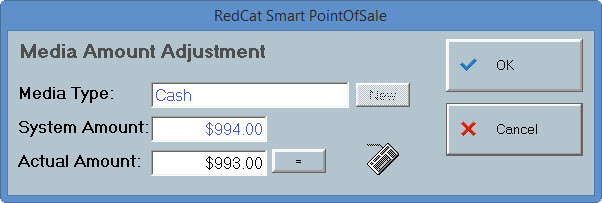
The next step is to count the cash and other media types in the drawers, and record the actual takings for each media type. To enter the actual takings: •If all of the system figures are correct, accept the system figures for all media types by clicking the No Variance button •Or to manually enter an actual figure for each media type, highlight a media type (eg. Cash) and then click the Edit Media button. The Media Amount Adjustment screen will be displayed.
•Click on the Keyboard button •Enter the actual takings for the selected media type or if the Actual Amount is equal to the System Amount, click the ' = ' button to automatically enter the System Amount; •Press OK to save; The screen will now display the system calculated figure, the actual amount entered, and the amount of any variance between the two figures. Repeat these steps for each media type. Note: Management Account and Client Account media types will also be shown as actual amounts with no variance - these amounts cannot be changed.
Once all actual figures have been entered, the trade data can be reset.
•To accept these figures and reset the terminal: •Press the Reset Sales •A message will be displayed asking you to confirm this action; •A second message will be displayed asking you to ensure that the customer receipt printer is on-line and ready to print; •Click OK and the Till Reset Report will be printed. A message will be displayed advising the successful completion of the reset.
The sales data from this trading session is written to a set of reset files which will be accessed by the Back of House computer. The POS terminals for this area will be ready to start the next trading period. If you have multiple areas at your location, repeat this process on the master terminals for each POS Area.
Using cash floats If you have enabled cash float tracking for the terminal, you will need to enter the actual opening and closing cash floats for the terminals. An opening cash float will need to be entered the first time the option is utilised. Subsequent times the terminal is reset, the closing cash float from the previous reset will carry forward to the reset as the opening cash float. Cash Float tracking an be enabled from the Polygon POS Management BOH Location System Settings. See section Location System Settings > POS Terminal Settings > Z-Read - General > Enable Cash Float Tracking for more information about enabling disabling this setting.
Sending Reset File to the Internet Repository If your POS Location has been assigned as an Internet Update location for the purposes of sending and receiving data between the Polygon POS Management computer and the POS terminals, the Web Updates icon on the toolbar at the top of the screen is shown.
The Web icon is used to instruct the terminal to connect to the internet and transfer any pending data either to or from the hard drive of the master terminal. Note: When a till reset is performed, the system will automatically look for an internet connection to upload available sales data. If an error message is displayed at this point it will most likely relate to a loss of internet or network connection.
|
 on the POS Terminal toolbar and enter your password;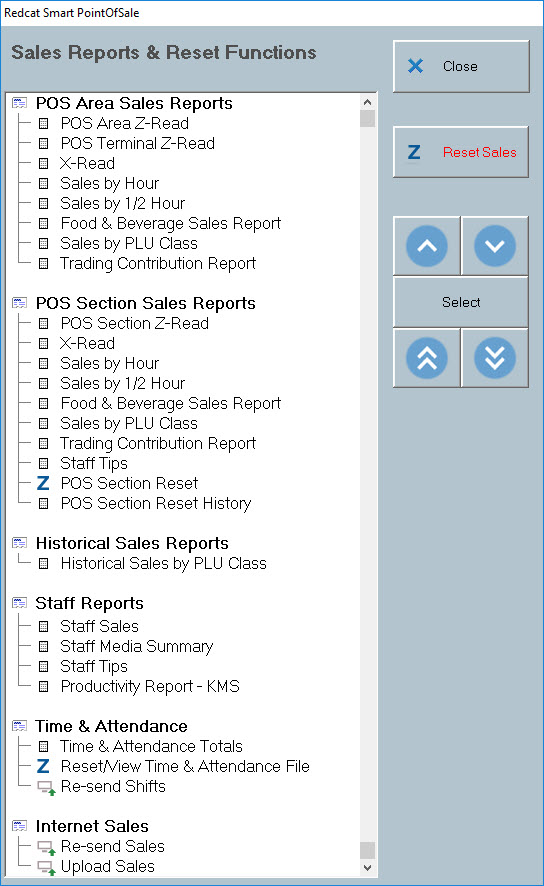

 to view a QWERTY on screen keyboard which can be used for data entry;
 | Using POS Section Resets |
|
POS Section Resets can be used to perform cash/media reconciliation across specific POS Sections within a POS Area. This can provide more control over cash variances and staff accountability across shifts and venue sections. This is an optional function. After POS Section resets are completed, you must still perform an Area Reset on the Master terminal, as per above.
To reset an individual POS Section: •Log on to a POS Terminal assigned to that section; •If table floorplans are used, click the Over The Counter Sale button; •Click the Sales Reports button The Sales Reports & Reset Functions window will be displayed (see above); •Highlight POS Section Reset and click Select; The POS Section Reset form will be displayed showing the system calculated balances for each media type based on sales finalised on POS terminals in this POS Section;
NOTE: If a POS Terminal is not assigned to any POS Section, performing a Section Reset will reset only the sales entered on this POS Terminal.
The next step is to count the cash and other media types in the drawers of terminals in this Section, and record the actual takings for each media type. To enter the actual takings: •If all of the system figures are correct, accept the system figures for all media types by clicking the No Variance button •Or to manually enter an actual figure for each media type, highlight a media type (eg. Cash) and then click the Edit Media button. The Media Amount Adjustment screen will be displayed.
•Click on the Keyboard button •Enter the actual takings for the selected media type or if the Actual Amount is equal to the System Amount, click the ' = ' button to automatically enter the System Amount; •Press OK to save; The screen will now display the system calculated figure, the actual amount entered, and the amount of any variance between the two figures. Repeat these steps for each media type. Note: Management Account and Client Account media types will also be shown as actual amounts with no variance - these amounts cannot be changed.
Once all actual figures have been entered, the POS Section data can be reset.
•To accept these figures and reset the Section: •Press the Reset Section •A message will be displayed asking you to confirm this action; •A second message will be displayed asking you to ensure that the customer receipt printer is on-line and ready to print; •Click OK and the Section Reset Report will be printed. A message will be displayed advising the successful completion of the reset.
If using this function a POS Section reset must be performed for ALL POS Sections within the venue. Repeat the above process on a terminal from each POS Section. Once all sections are reset, perform a POS Area reset on the Master terminal, as described in the first topic above.
NOTE: The details of each POS Section reset are not sent to BOH, they are intended for use at FOH only. The sales file sent to BOH is compiled by the POS Area reset on the Master terminal. |

 button;
If sales resets are un-available at the BOH, they can be resent from the FOH to the BOH. To do this: •Log on to the master POS Terminal; •If table floorplans are used, click the Over The Counter Sale button; •Select the Sales Reports button •Enter your password when prompted; •Highlight the Re-send Sales item and then click Select; The available sales files will be displayed: •If wish to re-send more than one sales reset, tick the Enable Multiple Selection tick box; •Highlight the sales resets which you wish to re-send; •Then click the Re-send Selected File(s) button. The selected sales will be re-sent to the BOH;
|
See Also:
Polygon POS Management > POS Revenue Processing
Polygon POS Management > Forcing a Sales Reset At The End of Each Trading Day
FOH > Entering a Sale - The Product Keypad Screen
FOH > Finalising a Sale - The Bill Settlement Screen
Polygon POS Management Introduction
Polygon Back Office Introduction