Sales are entered using the Product Keypad screen. It is comprised of 4 main parts. They are:

The following buttons appear on the Toolbar on the Product Keypad screen. With the exception of the System Settings button these buttons are available from the Product Keypad Screen only.
|



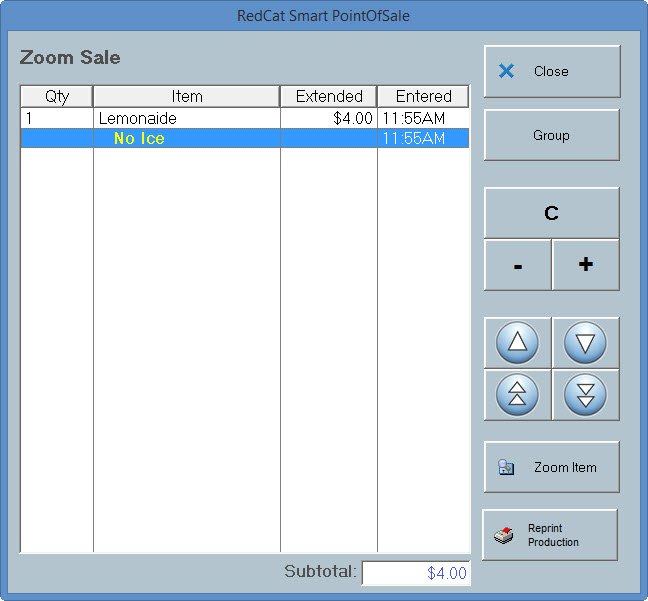
 , clear the sale or reprint a production docket using the
  toolbar button.



The Programmable Keys The programmable keys are the section of this screen which allows staff members to enter the items the customer has ordered, including any instructions or modifications (for the kitchen) and deviations in pricing structure (such as discounts etc). These keys can also be programmed to allow the user access to other keypads. Selected items will be displayed in the Display Window which is described below.
Programming of these keys is performed from the Product Keypads File which is accessible from the Polygon POS Management BOH software. See section Polygon POS Management > Keypads Overview for more information about setting up keypads from the BOH.
|

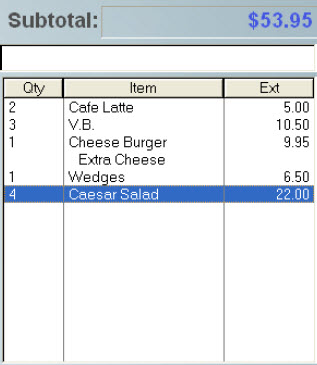
The Display Window This section of the screen displays the items which are included in the transaction. It enables the staff member to monitor a sale as it is being entered, or to view the items on any recalled table. It is also used in combination with the numerical keypad to edit and amend sales.
For example, pressing the item ‘Caesar Salad’ above, then pressing the ‘+’ key on the numerical keypad would change the item from ‘4 x Caesar Salad’ to ‘5 x Caesar Salad’. This is also useful for repeating a previous order such as a round of drinks, as the items do not need to be entered from the keypad buttons.
|
This section of the screen contains the keys which allow the staff member to: •Enter multiples of the same item; •Edit the existing sale items; •Print a receipt; •Save the sale to a table; •Open the cash drawer (no sale); and •Move to the Bill Settlement screen to finalise a sale.
Note: the No Sale button is password protected and only users with the 'Open Cash Drawer' privilege will be able to perform this action. Each time the No Sale button is used this is logged and recorded in the Exceptions Report.
See Also: Polygon POS Management > POS Staff Accounts > POS Staff Details Reports > Polygon POS Management Reports > Admin > Exceptions Report
|

 C (Clear) button - This button may be used to remove an item from a sale. The item to be removed is selected from the display window, then the C key is pressed.
 Add - This button will increase the quantity of the selected item. Pressing once will change ‘1 x Crown Lager’ to ‘2 x Crown Lager’. Pressing again will change ‘2 x Crown Lager’ to ‘3 x Crown Lager’ etc.
 Subtract - This button will decrease the quantity of the selected item. Pressing once will change ‘3 x Crown Lager’ to ‘2 x Crown Lager’. Pressing again will change ‘2 x Crown Lager’ to ‘1 x Crown Lager’ etc.
 T (Table) button - This button is used to save items to a table. To use, press: “
 Pay Button - This button will take you to the
  No Sale button - This button will open the cash drawer without finalising a sale. For example, you may use this button at the end of the trading day to get access to count the takings prior to doing a Sales reset.
See Also:
FOH > Finalising a Sale - The Bill Settlement Screen
FOH > Clearing A Sale - Refunds
FOH > Closing Procedure - Reconciling and Resetting the Terminal
Polygon POS Management Introduction
Polygon Back Office Introduction
Entering A Sale Using QSO Mode