All sales (with the exception of Over the Counter Fast Cash sales) are finalised using the Bill Settlement screen.
After logging in and accessing the Product Keypads, a staff member can process a sale by doing the following:
•Select the item/s to be sold Items are displayed in the subtotal window:

•Finalise the sale via the Pay button or a fast finaliser button (see below).

An Over the Counter sale may be finalised to Fast Cash. This is where the total of the sale is recorded as being received in cash. There is no allowance for ‘tips’, no opportunity to enter the amount of cash tendered, and no calculation of the amount of change to give the customer (except if the Fast Cash key has been programmed to a specific amount). You may only use this option if the Product Keypad (see section Setting Up the Product Keypads) has been programmed with this key type. If you have a ‘roaming staff member’ situation where the staff members are using handheld terminals and carrying cash, they may use a Fast Cash key to finalise either an OTC sale or a sale made to a table, as long as the table has just been entered (that is, the table has not already been saved).
Fast finaliser buttons can be used to finalise a cash sale with the press of a button. This is ideal for busy environments. Rather than having to finalise the sale in the Pay screen, staff can use a fast finaliser.
|
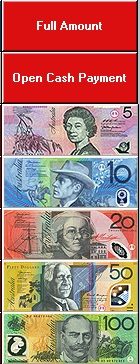
This screen is accessed after entering customer orders by clicking the Pay button at the bottom right of the numeric keypad on the product keypad screen. The Pay Screen is used to finalise: •Non-cash sales (eg. Eftpos, Management and Client accounts) •Sales that are being finalised to more than one media type (eg. Cash and Eftpos) •Split Billing •Using multiple settlement mode •Recording Tips •Clearing sales (see section FOH > Clearing a Sale)
|

•Enter the amount tendered. •Note: the 'F' button stands for "full amount" •Select the media type Note: if there is more than one media type, repeat the above for each media type. •Press OK to finalise • |
The following outlines how to record separate payments for specific items within a sale, otherwise known as split billing:
•Select the item to be included in the first payment. •Double click or click on the '+' button to move this item to the right hand side of the window •Repeat this process for any other items to be included
Note: You are able to select a portion of an item for payment (say you want to include half of the price of a bottle of wine in the bill) by highlighting the item and pressing the ‘+<1’ button and then choosing the correct portion.
If you need to print an account to present to the client, press the printer icon at the top of the split bill window. This will print an account showing only those items you have just selected.
•To save the split, press OK •This will return you to the Pay screen. Note: the total value of the split has automatically been calculated. •Select the media type •Click on the 'Split Bill' button to continue to split the rest of the bill.
Applying a Discount on a Split Bill Discounts can be applied to the split portion of a bill. •Click on the Discounts & Surcharges button •The Discounts File will be displayed, select the required discount Note: The Discounts File lists only discounts which are available from Product Keypads. To make a discount available from this form, add the discount to a product keypad. •Press OK to continue
To Print a Split Bill •After a portion of a split bill has been processed, the Show Split Bill button •This will display the portion of the sale. •To print a receipt click on the Print Receipt button
|

 will become available.
Multiple Settlement mode has been designed for counter service type establishments where clients order and pay at the counter and the meals are delivered to the table.
For example: three people are seated at Table 6 and come to the counter to order and pay. Client 1 orders his items and pays, the sale is then held while Clients 2 and 3 order and pay. The whole table sale is then released (which means that all the sale items are recorded as finalised, and the production dockets are released for printing).
Note: Until a sale is 'released' it will show in the table file under the 'Open' heading, even if it has payments equal to the value of the items ordered. It will not be moved to the 'Paid' sales until the sale is released. Also, no items are sent for production printing until the sale is released. The Release/Hold function is located in the Pay screen.
Select the type of Multiple Settlement Mode you wish to use in Polygon POS Management > Location System Settings > Sale Settlement > Multiple Settlement Modes.
Settlement Mode - Always On When the Always On option is selected, a Release Table button appears underneath the OK button on the Pay screen. •Enter items for the first client, go to the settlement screen and enter the payment. •Press the OK button, the sale is automatically held and you are returned to the product ordering screen. •Enter the items for the second client, go to the payment screen and enter the second payment. •When all clients for the table have ordered and paid, press the Release Table button and then OK. •The sale is now regarded as finalised, and any production dockets will be released to print.
Note: When you press the Release Table button it toggles to Hold Table.
Settlement Mode - On Demand When the on demand option is selected, a Hold Table button appears underneath the OK button on the Pay screen. •Enter items for the first client, go to the settlement screen and enter the payment. •Press the Hold Table button to hold the sale for multiple settlement. •Press the OK button, you are returned to the product ordering screen. •Enter the items for the second client, go to the payment screen, enter their payment and press OK. •Enter items and payments for all other clients for this table. •When all clients for the table have ordered and paid, press the Release Table button and then OK. •The sale is now regarded as finalised, and any production dockets will be released to print.
Note: When you press the Release Table button it toggles to Hold Table, and vice versa.
|
As soon as a tendered amount is entered in the Pay screen, the Partial Tip button will become active.
As soon as the tendered amount entered is greater than the total amount of the bill the Full Tip button will also become active.
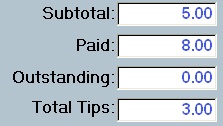
If the amount of ‘Change’ displayed is also to be the amount of the ‘tip’, press the Full Tip button. The amount in the Change box will be transferred to the Tips box.
If only a portion of the ‘Change’ displayed is to be given as a ‘tip’, press the Partial Tip button. Enter the amount of the tip using the numerical keypad and press OK. The amount of the tip will be transferred to the Tip box and the Change box will alter to reflect the amount of change now due to the customer.
Note: If you are utilising the Staff Tip Report to pay the staff tips from the cash drawer at the end of each shift, all tips need to be Subtracted from cash takings regardless of which media they actually are. Click here for more information about tips system settings and how tips are managed.
To keep track of which how much staff members have been tipped for this trading session, run the Staff Tips sales report from the FOH. Click here for more information.
|
There are a few options included in this screen which are designed to aid quick and efficient bill settlement.
Fast Finalisers
These keys record the amount displayed on the key as cash payments.
Clear Key
This key will clear a payment (amount and media) that has been incorrectly entered. Simply select the incorrect entry in the media type display window and press the 'C' button.
Full Amount Key
This key will record the amount tendered as the full amount of the bill. To use it simply press the 'F' button and then press the desired media type.
Table Button
A table can be saved after only a portion of the bill has been paid. Simply record the payment and then press the 'T' button to re-save the table.
Print Button
If you wish to print a receipt for the customer, click on the Print button.
Select Printer Button - Printing a Receipt to an Alternative Printer
A receipt can be printed at a printer other than the default receipt printer using this button. A list of all the receipt printers available to this terminal will be displayed. Highlight the printer you wish to use and press the Print Receipt button and the receipt will be issued to that printer.
No Sale Button
The No Sale button can be used if you need to open the cash drawer without finalising a sale. For example, you may use this button at the end of the trading day to get access to count the takings prior to doing a Sales reset.
Note: the No Sale button is password protected and only users with the 'Open Cash Drawer' privilege will be able to perform this action. Each time the No Sale button is used this is logged and recorded in the Exceptions Report.
Clear Sale Button
This button is used to remove a sale from the system and is most often used to perform refunds. This topic is covered in detail in the section FOH > Clearing a Sale - Refunds.
|





See Also:
FOH > Entering a Sale - The Product Keypad Screen
Front of House > Loyalty & Gift Cards
Polygon POS Management Introduction
Polygon POS Management > POS Staff Accounts > POS Staff Details
Actions such as cleared sales, deleted payments and use of the No Sale button can be logged and reviewed at a later time using the POS Execptions report which is available from the Polygon POS Management Back of House. See section Reports > Polygon POS Management > Admin for more information about the POS Exceptions report.