The POLYGON PAYROLL module reached end of life on 30 June 2021 and this was communicated to all clients licensed with this module.
This module is no longer supported.
Historical transactions may be accessed although entry of new payslips is no longer possible.
This form is used to enter new employee payments or to view existing payments. Payments can be created for salaried employees or wage earners.

From Polygon Back Office, Open the Employees File by clicking the Employees button on the toolbar, Select the Employee whom the new payment will be for, Then click on the New Payslip button.
|
From Polygon Back Office, Open the Employees File by clicking the Employees button on the toolbar, Select the Employee whose payment you wish to view, Click on the Employee Transactions button. This will load the Employee Transactions File which lists payments for this employee. Select the payment which you wish to view and click the View button. Note: When viewing an existing payment, the payment details are read only and can't be modified.
|
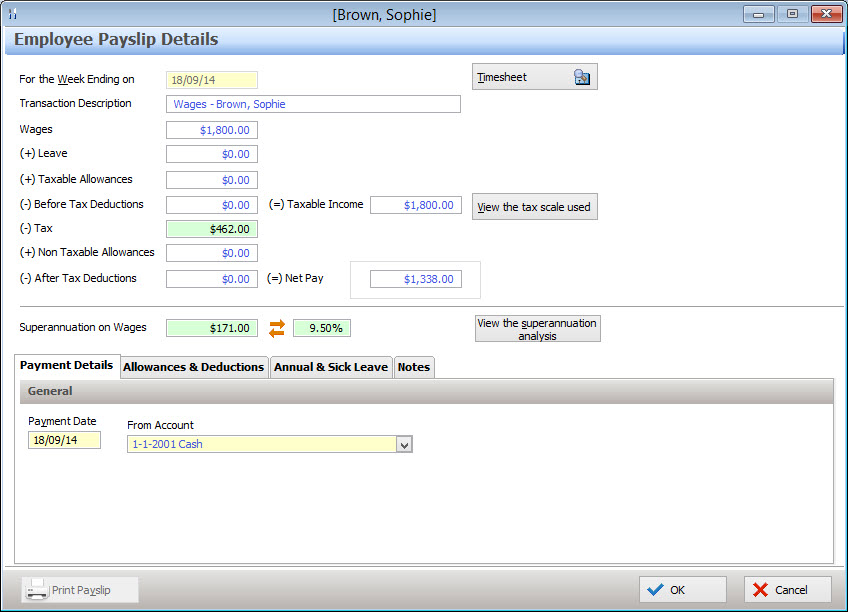
Information on this form is divided into five sections General, Payment Details tab, Allowances & Deductions tab, Annual & Sick Leave tab and Notes tab. These groups are described below:
General information is shown at the top of the form and is always visible. Most fields in the general section are read only and are pre-filled from data you have previously entered into the system. Read only fields are shown with blue text. The general fields are described below.
For the Week Ending on - Enter the last day of the week for this payment period. Transaction Description - Enter a description for this payment. Gross Salary or Wages - (Read Only) This field shows the salary or wages for this payment period before leave, allowances/deductions and tax are applied. (+) Leave - (Read Only) This field shows the value of any leave payments which will be added to the Gross Salary or Wages for this payment. (+) Taxable Allowances - (Read Only) - This field shows any taxable allowances that will be added to the Gross Salary or Wages before tax is calculated. (-) Before Tax Deductions - (Read Only) - This field shows any deductions that will be applied to the Gross Salary or Wages before tax is calculated. (=) Taxable Income - (Read Only) - This field shows the taxable income for this payment. That is Gross Salary + Leave Payments + Taxable Allowances - Before Tax Deductions. (-) Tax - This field indicates how much tax will be paid on this employee payment. Tax is applied to the Taxable Income figure above. This field is automatically filled but can be edited. To reset this field to the system calculated figure, right click on the text box and then click Reset. (+) Non Taxable Allowances - (Read Only) This field shows any non-taxed allowances which will be added to the payment. (-) After Tax Deductions - (Read Only) This field shows any deductions that will be deducted from the employee payment after tax has been applied. (=) Net Pay - (Read Only) This field shows the total payment which will be paid to this employee. This figure is calculated based from Gross Salary + Leave payments + Taxable Allowances - Before Tax Deductions - Tax + Non-Taxable Allowances - After Tax Deductions.
Superannuation on Wages - These fields show the amount of superannuation which will be paid. Superannuation is shown as a dollar value and as a percentage value. Superannuation is automatically calculated based on the contribution amount set for each employee in the Employee Details form and the gross salary/wages for this payment. This figure can be manually changed on the payslip form by entering either a new percentage value or a new dollar value. If you enter a new superannuation percentage value, the dollar value will automatically adjust to match this. If you enter a new superannuation dollar value, the percentage value will automatically adjust to match this. To undo changes and change the superannuation figure back to it's default, right click on a superannuation text box and then select Reset.
Timesheet Button - Clicking this button will display the Timesheet Details form which allows you to edit shift clock on/off times and edit change the base rates for the specified week's shifts. View the Tax Scale Used Button- Click this button to view which tax scale is being applied to this payment. Superannuation Analysis Button- Click this button to show the Superannuation Analysis File which displays superannuation statistics for this employee for the month. Print Payslip Button - Once a payslip has been saved by clicking the OK button, it can be printed by re-opening the payment and clicking the Print Payslip button at the bottom of the form.
See Also: Each employee can be assigned a different default superannuation contribution amount as a percentage value from Polygon Payroll > Employee Details form.
|
|
The four payment methods available are cash, credit, cheque and direct pay. These options are described below:
Payment Date Begin by entering the Payment Date. This is the date that the payment will actually be made to the employee. It is a legal requirement that this date be printed on the employee payslip.
Paying by Cash To pay by cash, select Cash from the From Account drop down list box. No other data entry is required in the payment details tab when the From Account is set to Cash.
Paying by Credit Card To pay by credit card, select a credit card account from the From Account drop down list box. No other data entry is required in the payment details tab when a credit card account is selected in the From Account list.
Paying by Cheque When paying by Cheque, select a Cheque Account from the From Account drop down list box. This causes cheque related options will be become available. These are: •Cheque Number text box - Enter the cheque number of the cheque being used for this payment here; •The Next Cheque button - Clicking this button automatically fills the Cheque Number text box with the next available cheque number for this cheque account; •The Print Cheque tick box - This tick box is only available when a new payment is being created. Ticking this box indicates that the system should print this cheque when the payment is created; •The Print Cheque button - This button is only available when a created payment is being re-opened. Clicking this button will print a copy of this cheque.
Paying by Direct Debit Direct Debit options are only available when the staff member being paid has Direct Debit information entered in their Employee Details (See section Polygon Payroll > Employee Details for information about recording Employee Direct Debit details), and when a Cheque account is selected in the From Account drop down list box. When this is true, a Direct Debit tick box shown next to the From Account list box (Shown below). Ticking the Direct Debit tick box clears the Cheque related information and displays Employee Direct Debit account details for up to two accounts. A payment amount can be entered for each of the two accounts. Enter the payment amounts for each of the employee bank accounts.
See Also: See section Polygon Payroll > Employee Details to read more about recording Employee Direct Debit account information. See section Polygon Payroll > Paying Employees Electronically - Direct Entry Files for further information about passing direct payments files to your bank. See section Polygon Back Office > Accounts > Bank Accounts File for instructions explaining how to add new credit card accounts, cheque accounts or bank accounts to the system.
|


|
To Add or Change allowances and deductions for a given pay week: •Select the Allowances and Deductions tab. If the selected employee has fixed allowances and deductions, these will automatically appear in the list. •To insert a new once off allowance or deduction, either type an allowance/deduction name in the description heading, or, select the Line Item button oIf you selected an allowance/deduction from the Allowances & Deductions file then the Account (to be credited/debited), Amount (dollar value of the allowance/deduction), Type (allowance or deduction), Before Tax setting and Affects Super setting will be automatically entered. Changing these settings will affect the allowance/deduction for this payment only. oIf you typed an allowance/deduction name and it doesn't match the name of an allowance/deduction which is stored in the allowances/deductions file you will need to manually enter Account (to be credited/debited), Amount (dollar value of the allowance/deduction), Type (allowance or deduction), Before Tax setting and Affects Super setting. These methods are used when adding once off allowances/deductions. Alternately, recurring allowances/deductions can be created from the Payroll Allowances & Deductions File and then assigned to an employee from the Employee Details form.
Note: If you enter a new allowance here and it needs to be shown separately in the allowances section of the employee payment summary, the description must match an allowance already set up in the global allowances file which is correct tagged to print on the payment summary. Users should check requirements with ATO “PAYG Bulletin No 1 – Taxing of Allowances for the 2000/01 and future income years” to determine if the allowance needs to be tagged. Allowances that are not tagged will be added to the gross payment on the employee payment summary in accordance with the ATO requirement unless it is tagged not to be shown on the payment summary at all in which cash it is not shown in the allowances section and neither is it added to the gross salary amount.
To delete an allowance or deduction for a given pay week: •Select the Allowances and Deductions tab; •Highlight the line which lists the allowance/deduction which needs to be deleted; •Click the Delete button. Note: Deleting an allowance or deduction from the employee payslip details form will remove it from this payment but if the item has been set up as a recurring allowance or deduction it will be automatically re-entered on the next payment. Recurring allowances/deductions can be assigned/unassigned from the Employee Details form.
See Also: Polygon Payroll can record regular allowances and deductions which can be automatically applied to each employee payment. For more information about creating regular allowances & deductions, see section Polygon Payroll > Allowances & Deductions File. For information about assigning regular allowances and deductions to an Employee, see section Polygon Payroll > Employee Update Form > Allowances & Deductions tab.
|
 to the left of the description column and select an allowance/deduction from the Payroll Allowance & Deductions File.
|
Polygon Payroll will add payment for Annual and Sick leave to the employee’s taxable income and deduct any hours taken from the employee’s accrued annual/sick leave entitlement. Entering Annual and Sick Leave Hours for Wage Earners: If the pay details being entered have a component of either annual or sick leave only enter the hours that the employee actually worked. •Select the Annual & Sick Leave tab; •Enter the Annual Leave Hours Taken this week; •Enter the Sick Leave Hours Taken this week. The General Payment Details including Wages amount and Leave amount will automatically update to include the recorded Annual Leave and Sick Leave.
Entering Annual and Sick Leave Hours for Salaried Employees: To record annual and/or sick leave for a salaried employees: •Select the Annual and Sick Leave Tab; •Enter the number of hours that the employee actually worked In the Normal Hours Worked field; •Enter the Annual Leave Hours Taken this week; •Enter the Sick Leave Hours Taken this week. The General Payment Details including Gross Salary amount and Leave amount will automatically update to include the recorded Annual Leave and Sick Leave.
(For Multi-Department Users) Cost Assignment for Split Department Wages If you have completed a timesheet where hours have been assigned to more than one department, Polygon Payroll will calculate the annual leave entitlement and assign the resulting expense over the various departments using the ratio of hours against $ value per department. Sick leave taken will always be assigned to the ‘home’ or default department of the employee.
See section Polygon Payroll > Employee Leave Transactions File for more information about managing Employee Annual Leave and Sick Leave transactions.
|
|
The Notes tab is a free form field which allows you to enter additional information relevant to this payment. Note: To easily see if notes have been entered for the payment. Look for a magnifying glass icon shown on the notes tab.
|
 If the magnifying glass icon isn't shown there are no notes recorded for this payment.
See Also:
Polygon Back Office > Polygon Payroll > Getting Started
Polygon Back Office > Polygon Payroll > Using Polygon Payroll
Polygon Back Office > Polygon Payroll > Creating Employee Payments - This section explains the different steps for Salaried Employee payments, and Wage Earner payments.
Polygon Payroll > Allowances & Deductions File
Polygon Payroll > Employee Leave Transactions File
Getting Started with Polygon Back Office