Recipes are used when part of a stock item or a combination of stocks items are to be sold as one product. For example, a recipe could be created for a cocktail that is made from a combination of small portions from spirits stock items. The features of the Recipes File are described below. The Recipes File displays a list of existing recipes and provides options to create, modify or delete recipes.

From Polygon Back Office, Select Stock from the main menu and then select Recipes or, Click the Recipes button from the toolbar.
|
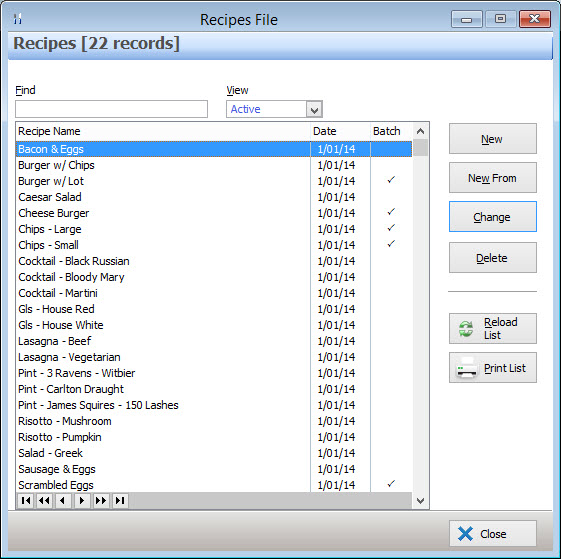
•To Search for a Particular Recipe - Type part of or all of the recipe name into the find box.
•To Create a New Recipe - Click on the New button or highlight an existing recipe and click the New From button. This will display the Recipe Details form where the new recipe can be configured.
Handy Hint: The New From button allows you to create another recipe based on a finished recipe, the new recipe can then be adjusted as needed rather than created from scratch. To do this high light a completed recipe and then click the New From button. The new recipe can be edited from the Recipe Details form.
•To Modify an Existing Recipe - Double click on the recipe or highlight the recipe and then click on the Change button. This will display the Recipe Details form.
•To Delete an Existing Recipe - Highlight the recipe and then click on the Delete button. It is recommended that the Delete feature is not used for recipes which have been used at the Front of House. Deleting the recipe will clear any records associated to the recipe. If a recipe will no longer be used we recommend making the recipe Inactive from the Recipe Details form.
•Reload List - This button is useful if you have a multi-user license where more than one user can access Polygon Back Office at a time. Click this button to update the list with any changes made by other users such as newly created or recently deleted items.
•To Print the Recipe List - Click on the Print List button, this will generate a report showing the recipes currently displayed in the Recipes File. This report can be saved or printed.
•Sorting Recipes - Recipes can be sorted by name, the recipe creation date or whether the recipe is a Batch Recipe or not. The headings at the top of the list can be clicked on to sort the recipe list by that attribute. Clicking on the heading again will reverse the sorting order.
•Filtering Recipes - Active/Inactive, Recipes can either be Active or Inactive. Recipes which aren't currently used can be classed as Inactive and filtered out of the recipes file to avoid clutter. To filter which recipes are displayed select Active, Inactive or All from the View list box at the top of the form.
Note: In order to perpetually track the usage of a recipe, the recipe needs to be assigned to a PLU. This can be done from the Recipe Details form or from the Polygon POS Management > PLU Item Details form.
See Also:
Polygon Inventory Introduction
Polygon Inventory > Getting Started with Polygon Inventory
Polygon Inventory > Using Polygon Inventory
Polygon Inventory > Recipe Details
Polygon Inventory > Stock Items File
Polygon POS Management > PLU FIle