The Stock Items File is used to manage stock types and stock items. Stock items are items that you purchase from suppliers for use in your business. Stock items need to be created and linked to PLUs in order to operate a fully perpetual stock control system.
Stock types are similar to categories as they group like stock items to better facilitate stock taking and to allow you to easily navigate through the Stock Items file. For example, common stock types include; Beers, Red Wine, White Wine and Spirits. The stock items file allows you to manage stock types and stock items.

From Polygon Back Office, Click the Stock Items button on the toolbar.
|
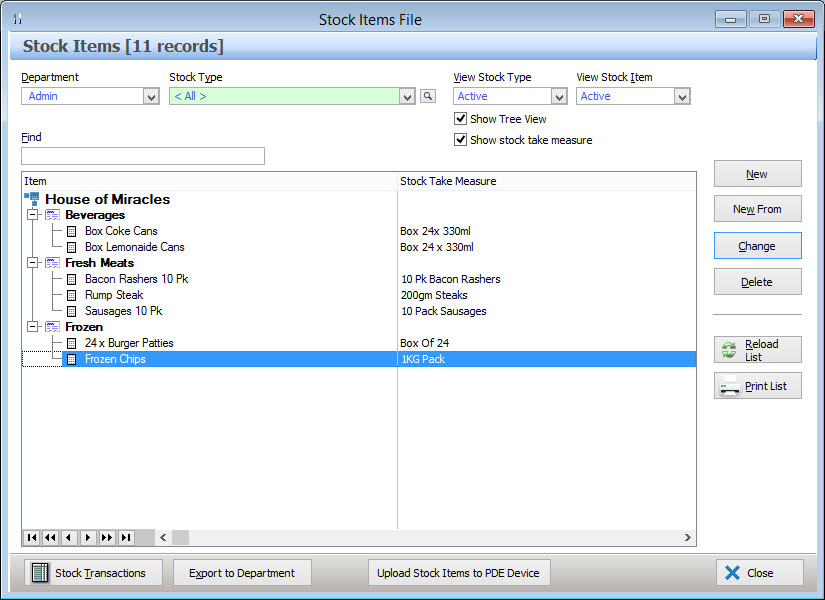
Filtering Options
The Stock Items and Stock Types in the Stock Items File can be filtered by Department, Stock Type, Active/Inactive Stock Types and Active/Inactive Stock Items. These filter options are selectable from the drop down lists at the top of the form.
To Create a New Stock Type:
•Click on the New button and select Stock Type. This will load the Stock Type Details file where you can name this stock type.
To Create a New Stock Item:
•Select the Admin Department;
•Select the Stock Type to which this new stock item will be assigned;
•Click on the New button and select Stock Item, this loads the Stock Item Details form where you can enter the specific details for this stock item, or,
•Highlight an existing Stock Item and click the New From button to create a new Stock Item based on the currently selected Stock Item, this loads the Stock Item Details form and automatically enters the configuration from the selected Stock Item, these details can be changed as needed.
To Modify an Existing Stock Type or Stock Item
Highlight the item which you wish to edit, then click on the Change button. Depending on the type of item selected, this will display the Stock Item Details file for Stock Items or the Stock Type Details file for for Stock Types, use these forms to make your desired changes.
To Delete a Stock Item or Stock Type
NOTE: You will not be able to delete a stock item if it is used in any recipe, or if it has associated stock ledger transactions.
Highlight the Stock Type or Stock Item which you wish to remove, then click the Delete button. The system will check if it is possible to delete the item. If it is possible to delete the stock item, you will be prompted for confirmation to delete the selected item. Click the Yes button to confirm this action.
Multi-Department Users – You are not restricted to the Admin Department. Stock items may be deleted from any Department providing they do not have any associated ledger transactions.
De-Activating Stock Items or Stock Types
An alternative to deleting a stock item or stock type, is to make it Inactive. This mean the stock item(s) can no longer be included in invoices or sold but historical records such as invoices will be preserved. The stock item can be easily re-activated at a later date if needed. To Deactivate an item:
•Multi-department users, select the appropriate department;
•Highlight the item to deactivate, then click the Change button, this will load the item details form;
•Un-tick the Active tick box at the top right of the form;
•Click OK to save these changes.
The selected Stock Item or Stock Type will now be inactive. This item can be re-activated at a later date by ticking the Active tick box.
Reload List - This button is used in multi-user installations where multiple users may be entering data at the same time. Clicking this button will refresh the displayed data and show any changes made by other users.
Print - Click on the Print button to generate a report showing the stock items and stock types currently displayed in the Stock Items file. This report can be printed, saved or converted into CSV format.
Show Stocktake Measure
Ticking this tick box will show how each stocktake item is measured (litre, kilo or other).
Show Tree View
Ticking/un-ticking this tick box toggles between a tree list of stock items grouped by their stock types or a normal un-grouped list which is sorted alphabetically. See section Navigation > Navigating Tree Menus for more information about using Tree Views.
To search for a particular Stock Item - Type some of or all of the stock item or stock type's name into the find box. The best match of this text will be highlighted.
Stock Transactions
Select a stock item and then click the Stock Transactions button will load the Stock Item Account Transactions File which allows you to view and manage transactions for the selected stock item.
Export To Department - (For Multi-Department Users)
If you have a multi-department license, stock items, stock types or the entire admin department can be exported from the admin department into other user created departments. To export a stock item or stock type to a department, highlight the entry to export and click the Export To Department button. This will display the Departmental Export form where you can configure the export options.
Note: Items can only be exported from the Admin department which is selected from the top left of the Stock Items File.
Upload Stock Items to PDE Device
Clicking this button allows you to upload a stock list with barcode information to a PDE (portable data entry) device which is used to make stock taking more efficient. For more information about PDE devices see section Using PDE Devices.
See Also:
Polygon Inventory Introduction
Polygon Inventory > Getting Started with Polygon Inventory
Polygon Inventory > Using Polygon Inventory
Polygon Inventory > Export to Department
Getting Started with Polygon Back Office