A PLU keypad button points directly to an individual PLU and allows it to be sold at the FOH. These keys are usually used for the most popular items on the menu as only one touch is required to enter that item. PLU keys can be added to a product keypad from the Keypad Button Details form.

From Polygon POS Management, Select the Product Keypads button from the toolbar, then either, •Click the New button to create a new product keypad, or, •Highlight an existing Product Keypad and click the Change button to modify the selected keypad, Then click on a blank button to add a new product keypad button, This will display the Keypad Button Details form, Click the PLU button to select from a list of PLUs.
|

To Insert a PLU Key:
•Select the PLU button in the Keypad Button Type section. The PLU File will be displayed. You may wish to use the search function or sort to pinpoint the required PLU.
•Highlight the required PLU and press the Select button.
•The Type and Value will automatically be inserted into the Keypad Button Update Form.
•The name of the PLU will be automatically assigned as the Keypad Button Text. However, you may change this as required (as in the screen above). Important: The Keypad Button text will be used on the POS Terminal and on any peripherals (eg. printer or production display), not the PLU description.
•Modify colors and assign an image if required. For more information on assigning button colours and images, see section Keypad Button Details.
•Press OK to save
Using Drag and Drop to create a PLU Key:
PLU buttons on Product Keypads can be quickly and easily created by dragging the PLU record from the PLU file and dropping onto a keypad button.
•Open the PLU file and filter the PLUs to view the selection you wish to add to Product Keypad buttons.
•Open the Product Keypad on which you wish to add the PLUs.
•Arrange both the PLU File and the Product Keypad windows on your screen so that you can view both at the same time.
•Highlight the required PLU and drag the PLU until it rests on the targeted button.
•Release your mouse to drop the PLU onto the button.

Operational Notes:
The Target button must either be an empty button, or a button already programmed as a PLU button.
If you try to drop the PLU on an existing Category or System (Other) button, you will be unable to release.
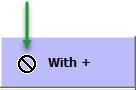
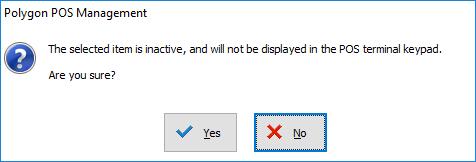
If the PLU you choose to drag and drop is inactive, a warning message will be displayed, and you will be offered Yes | No options to continue.
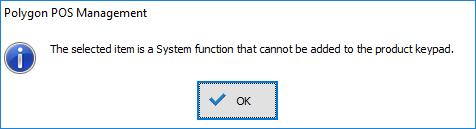
System PLUs may not be assigned to buttons using the drag and drop function. A message will be displayed accordingly.
If you drag and drop a PLU onto an empty button, the default colours programmed for PLU buttons will be applied. If the PLU has an image assigned, the image will also be applied to the button.
If you drag and drop a PLU onto an existing button, any colours already programmed on this button will be retained. If the PLU has an image assigned, the image will be applied to the button overriding any colour programming.
See Also:
Polygon POS Management > Product Keypad Button Details
Polygon POS Management > Product Keypad - Category Keys
Polygon POS Management > Product Keypad - Other Keys
Polygon POS Management > Product Keypads File
Polygon POS Management > Keypads Overview
Getting Started with Polygon POS Management