This form allows you to edit the presentation and behavior of a product keypad button which was clicked on from the Product Keypad Details form.

From Polygon POS Management, Select the Product Keypads button from the toolbar, then either, •Click the New button to create a new product keypad, or, •Highlight an existing Product Keypad and click the Change button to modify the selected keypad, Then click on the product keypad button which you wish to modify.
Polygon POS Users will: Select the Product Keypads button from the toolbar, then either, •Click the New button to create a new product keypad and create an object on that new keypad, or •Highlight an existing Product Keypad and click the Change button to modify the selected keypad, then double click an existing object to modify. |

Keypad Buttons can be one of 3 main types which are listed below, click a link for more information about a key type:
To Change the Keypad Button Text
The name of the button will be automatically assigned as the Keypad Button Text. However, you may change this as required. The Keypad Button Text is what is will actually be displayed on the Keypad Button and dockets. Characters are limited to 10 per line, including spaces.
To change the Keypad Button Colour
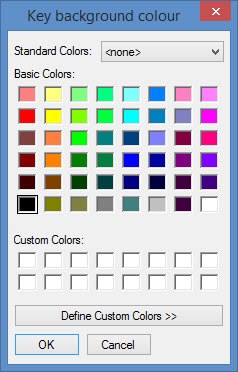
The colours of a particular key may be changed from the system defaults using the ‘b’ button for background and the 'f' button for font, within the keypad button update form. You can also adjust the existing colours to create custom colours and add them to the bottom of the palate for easy use. This basic colour palate will appear when you hit ‘b’ or ‘f’, select the colour and press OK to apply.
The Assign/Clear image button  may be used to assign a graphic image to the button, or replace it with text. Keypad Button settings will over-ride PLU settings.
Detailed instructions for assigning images when accessing the Redcat Cloud platform can be found here.
If you need to restrict access to the button, choose a security level from the Access security level drop down box.
Access levels are cumulative which Level 1 being the highest or greatest access level.
POS users will need to be assigned a security role with access to the correct security level to be able to use the button. Users granted only Level 3 access will only be able to access buttons with Level 3 security levels. Users granted Level 2 access will be able to use buttons with either Level 2 or Level 3 security. Users who are granted Level 1 access will be able to access buttons that are assigned Level 1, 2 or 3 security.
At the POS the user will be prompted for their password to use the key, their name is automatically logged as part of exceptions reporting.
Delete Key
Clicking the Delete Key button will make the selected button blank again.
See Also:
Polygon POS Management > Product Keypads File
Polygon POS Management > Keypads Overview
Getting Started with Polygon POS Management