The POLYGON PAYROLL module reached end of life on 30 June 2021 and this was communicated to all clients licensed with this module.
This module is no longer supported.
Historical transactions may be accessed although entry of new payslips is no longer possible.
General configuration settings for Polygon Payroll are accessible from the Polygon Back Office Application Settings. These are options which will instruct your Polygon Payroll system how to function.

From Polygon Back Office, Select File from the main menu then click Application Settings, or, Use the shortcut keys by holding Control and pressing A. Then, Select Polygon Payroll from the menu at the left.
|
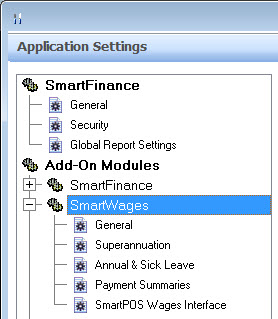
There are 4 subgroups under the Polygon Payroll heading. They are General, Superannuation, Annual & Sick Leave, Polygon POS Management Wages Interface. These groups are described below.
|
Post Timesheets using GL accounts from - This setting has three options. Select either Payroll Rates, Work Types or Employee Default Payroll Account. These options are described below: •Payroll Rates - Select this option if you will assign a default ledger account when creating employee pay rates and you wish to have the costs associated with time worked under those rates charged to this ledger account rather than the default ledger account assigned to each employee. (When this setting is enabled, each Payroll Rate can be assigned a general ledger (GL) account for associated costs to be charged to. GL accounts are assigned to Payroll Rates from the Payroll Rate Details form); •Work Types - Select this option if you wish to record the costs associated with time worked to a ledger account determined by a Work Type rather than the default ledger account assigned to each employee. See Also: Employee Work Types •Employee Default Payroll Account - Select this option if you wish to record the costs associated with time worked to a ledger account specified for each employee. Each employee's ledger account is selected from the Employee Details form.
Payroll Award Settings - Click the Line Item button
|
 to view the
|
This section allows you to configure how superannuation is managed by Polygon Payroll.
•Superannuation Monthly Threshold - Polygon Payroll will automatically calculate the superannuation requirements and post this to the employee record as well as a ledger account. Enter the minimum wages to be earned by an employee before they become eligible for employer contributions. Please note: If an employee is under 18, and works less than 30 hours in a week, no superannuation is payable, regardless of whether or not the threshold figure entered here is reached.
Employee Contributed Superannuation Polygon Payroll provides you with the ability to process both Salary Sacrifices Superannuation and Voluntary Contribution Superannuation for your employees. •Salary Sacrifice Deduction - Click the line button Please note: The only deductions available in this list are the ‘before tax deductions’ which have been entered in the global allowances and deductions file. Please see the Polygon Payroll > Payroll Allowances & Deductions section for more details about adding & editing these deductions. •Voluntary Contribution Deduction - Click the line button Please note: The only deductions available in this list are the ‘after tax deductions’ which have been entered in the global allowances and deductions file. Please see the Polygon Payroll > Payroll Allowances & Deductions section for more details about adding & editing these deductions.
|
|
•If the system is to automatically accrue annual and sick leave entitlements for employees each week, check the Accrue Annual and Sick Leave box. •If you do not want the Sick Leave accrual to be printed on the employee payslips then tick the Do not show sick leave balance on payslips tick box. •Enter the Standard Hours per Day and Leave Loading Factor relevant to your business.
|
This section contains business information which is required when generating payment summaries.
The following information is available from this section: •The ATO Supplier Record; •The Postal Address; •The ATO Employer Record (includes the registered business name, trading name, withholding payer number (WPN), branch number, contact name, contact phone, contact fax) Note: The business address, ATO Supplier ABN and ATO Supplier ACN fields are read-only. To change this information please contact Redcat support, by email support@redcat.com.au or by phone 1300 473 322, then select option 3 for support.
See section: Polygon Payroll > Payment Summaries for more information about generating payment summaries.
|
|
Enable Polygon Payroll POS Interface - If you wish to use the staff clock on/off feature at your POS terminals, and have that information loaded into your Polygon Payroll timesheets, tick this box. Wrap After-Hours Shifts on the Same Day It is frequently the case that employees are rostered to complete their shift after midnight. You may choose to have Polygon Payroll deal with hours worked after midnight in one of two ways. •Insert the hours into the timesheet using the ACTUAL date and time (default): or •Insert the hours into the timesheet using the SHIFT date and time. If you wish to have Polygon Payroll deal with hours worked after midnight using the SHIFT date and time, then place a tick in this box. This will treat shifts which end after midnight as part of the same day.
For more information about working with shifts which start before midnight and finish after midnight, please see section Polygon Payroll > Timesheet Details > Dealing with Hours Worked after Midnight
|
Reminder: Remember to send an update to the front of house after making changes to the back of house configuration. For more information see section Polygon POS Management > Sending POS Network Updates.
See Also:
Polygon Payroll > Getting Started with Polygon Payroll
Polygon Payroll > Using Polygon Payroll
Getting Started with Polygon Back Office