For clients with IP (network) production printers and receipt printers, the Print Manager application can be accessed from the POS Terminal system settings. Select System Settings icon from the tool bar and go to Print Manager in the left hand menu:
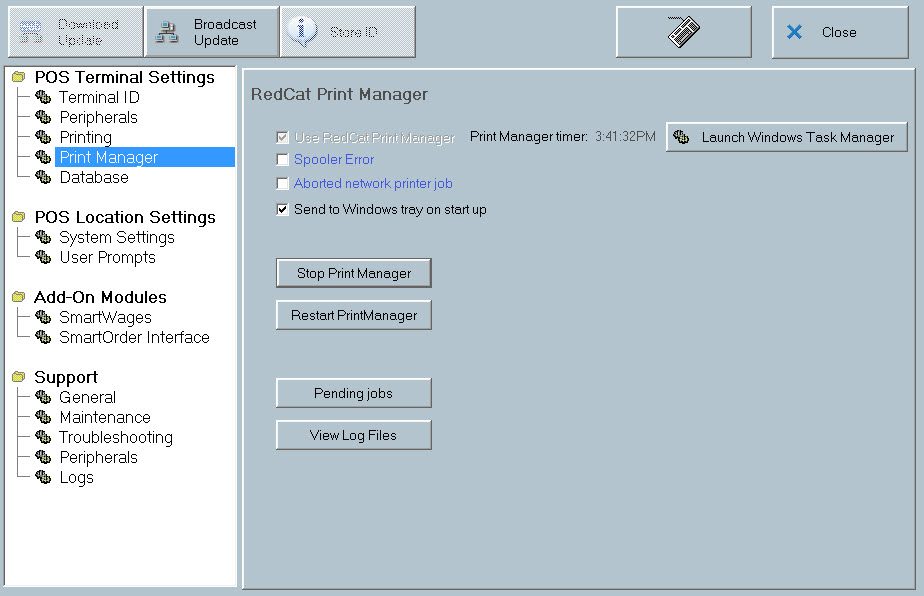
If you operate network printers on your system, it is important to know how the print manger application will operate on the print server terminal. Some points to note:
•If you use Cross Area Printing, you will nominate which terminal acts as the print server. Cross Area printing can be enabled from Polygon POS Management > POS Location Settings > Printing > Cross Area Printing
•If you don’t use Cross Area Printing, the master terminal will act as the print server.
•The Print Manager application will be launched automatically and run in back ground mode on the print server terminal each time the terminal software is opened.
•The Print Manager Application will close automatically when you exit the terminal software on the print server.
Note: Print jobs sent by other terminals on the network to the print server, will only be directed to the network printers if the RedCat terminal software is successfully running on the server terminal.
•The Stop Print Manager button will end the application. It will not restart until the terminal software is launched again, or the restart button is pressed.
•The Restart Print Manger button will close the application if it is running, and re-launch it, or launch the application if it has been stopped.
•The Show Task Mgr button will launch the Windows task manager. This option should only be used if absolutely necessary, when Print Manager cannot be successfully restarted. Click the Processes tab within Task Manager. Highlight the print manager process shown as ‘RCSPOOLER.EXE’ and click End Task and OK.
•The Pending Jobs button will display the Print Manager Pending Jobs form displays a list of pending print jobs. If the print manager is not running these jobs can be canceled from this list by highlighting the print job and clicking the Delete Selected button.
See Also:
POS Terminal Redundancy and Recovery
Polygon POS Management > POS Network File
Getting Started with Polygon POS Management
Getting Started with Polygon Back Office